
VEIKK VK1200
4.2Editor score
Affordable price point
Battery free stylus included
Full HD IPS screen
Finding an affordable drawing tablet with a screen can be challenging for beginners and professionals alike. You need a device that offers pressure sensitivity and color accuracy without breaking the bank. This guide explores ten options designed to meet diverse creative needs.
We evaluated each model based on display quality, pen performance, compatibility, and overall value. Our analysis focuses on how well these devices handle digital art tasks like sketching and painting. We also consider build quality and user experience to ensure lasting satisfaction.
Each pick highlights specific strengths and ideal use cases for different types of creators. Please note that availability and pricing may fluctuate over time. Always check the latest details before making a final purchasing decision for your workflow.
4.2Editor score

4.4Editor score

4.5Editor score
As an Amazon Associate we earn from qualifying purchases.
This table provides a side-by-side comparison of all ten models to help you quickly identify key specifications and features for your needs.




The XP-PEN Artist12 stands out as a reliable choice for artists seeking an affordable pen display. It offers a solid 11.6 inch screen with full HD resolution suitable for digital drawing tasks. Users appreciate the battery-free pen that mimics traditional pencil feel without charging hassles.
We may earn a commission when you buy through this link, at no additional cost to you.
Its compatibility spans Windows Mac and Linux systems making it versatile for diverse workflows. The included anti-reflective screen protector reduces glare effectively during long sessions. Customizable shortcut keys enhance efficiency by allowing quick access to frequently used tools within creative software.
While it requires a computer connection which limits standalone use the connectivity options are straightforward. The driver software is robust though some users may need time to configure all keys to their liking. The pen feels balanced and includes extra nibs for durability over time.
This model is ideal for students and hobbyists starting their digital art journey. It provides essential features without overwhelming complexity or cost. We recommend it for anyone needing a dependable tool for illustration and photo editing tasks on a budget.
The hexagonal pen design prevents rolling and offers a non-slip grip for precision work.
Teachers can use this screen for remote lessons with handwriting annotation capabilities.
We may earn a commission when you buy through this link, at no additional cost to you.
The VEIKK VK1200 V2 features full-laminated technology which minimizes the gap between glass and screen. This design reduces parallax making cursor placement feel more accurate during detailed work. The anti-glare glass provides a natural paper-like texture that many artists prefer for sketching.
We may earn a commission when you buy through this link, at no additional cost to you.
It supports tilt function and includes two battery-free pens ensuring you always have a backup ready. Setup is simplified with single-cable connectivity via USB-C for devices that support it. The compact frameless design makes it easy to transport for on-the-go creative sessions.
While the color gamut is standard for this price range the display clarity remains sharp. The six programmable keys help streamline workflows once configured correctly in the driver. Some users may find the initial setup requires patience to align software preferences perfectly.
This tablet is well-suited for illustrators who value accuracy and portability. It balances performance with cost effectively for daily drawing tasks. We suggest it for users upgrading from non-screen tablets who want better precision.
Laminated screen ensures your pen tip aligns closely with the cursor on display.
Includes artist glove and cleaning cloth to maintain screen hygiene during use.
We may earn a commission when you buy through this link, at no additional cost to you.
The GAOMON PD1161 offers eight press keys on the side providing extensive customization options. This allows artists to map frequent actions like undo or zoom directly to physical buttons. The display supports tilt and pressure sensitivity for natural shading control in digital painting.
We may earn a commission when you buy through this link, at no additional cost to you.
It comes with a pre-installed matte film that reduces glare and mimics paper texture. Color performance is vivid with support for millions of display colors for lifelike artwork. The battery-free stylus eliminates charging interruptions during creative sessions.
Users should note that this model requires an external power adapter for stable operation. Cable management can be slightly involved compared to single-cable solutions. However the driver allows for deep customization to suit individual workflow preferences.
This device is excellent for professionals who need quick access to tools without looking away. It works well across various creative platforms including photo editing and 3D sculpting. We recommend it for users prioritizing workflow efficiency on a budget.
Eight keys allow you to map complex commands for faster art creation.
Seventy-two percent NTSC gamut ensures rich and smooth color gradation.
We may earn a commission when you buy through this link, at no additional cost to you.
The Artisul D16 offers a larger fifteen point six inch workspace which is rare at this price point. Full lamination ensures accurate cursor positioning while the anti-glare film improves visibility. A quick dial helps adjust brush sizes or scroll pages efficiently during work.
We may earn a commission when you buy through this link, at no additional cost to you.
Its refurbished status often means significant savings while maintaining functional quality. The included stand supports multiple angles for comfortable posture during extended creation sessions. Battery-free stylus technology ensures you never run out of power mid-project.
Prospective buyers should check the condition details as refurbished items may show minor wear. Compatibility is broad across Windows and macOS systems for easy integration. The brightness adjustment button allows adaptation to different lighting environments effectively.
This tablet is perfect for artists needing more room for complex illustrations. It balances size and affordability well for desktop setups. We suggest it for those comfortable with refurbished electronics seeking extra screen real estate.
Adjustable stand provides six different angles to reduce strain during work.
Larger area allows for more detailed work without constant canvas scrolling.
We may earn a commission when you buy through this link, at no additional cost to you.
The HUION Kamvas 13 Gen 3 introduces dual dial controls for precise workflow management. Advanced pen tech offers high pressure sensitivity ensuring fluid and natural strokes. The canvas glass reduces sparkle and glare while improving accuracy for detailed work.
We may earn a commission when you buy through this link, at no additional cost to you.
Factory calibration ensures color consistency out of the box which is crucial for designers. Nine ninety-nine percent sRGB coverage delivers vibrant and accurate visuals for professional results. USB-C single cable connection simplifies setup on modern laptops and desktops.
While priced higher than basic options the build quality justifies the investment for serious creators. The stand allows comfortable viewing angles to maintain good posture. Compatibility extends to Android devices expanding usage scenarios beyond traditional computers.
This model is ideal for professionals who demand reliability and color precision. It balances modern features with usability for daily creative tasks. We recommend it for users needing advanced controls and verified color performance.
Factory calibration report confirms accurate color rendering for professional work.
Dual dials allow quick adjustments to brush size and layer visibility.
We may earn a commission when you buy through this link, at no additional cost to you.
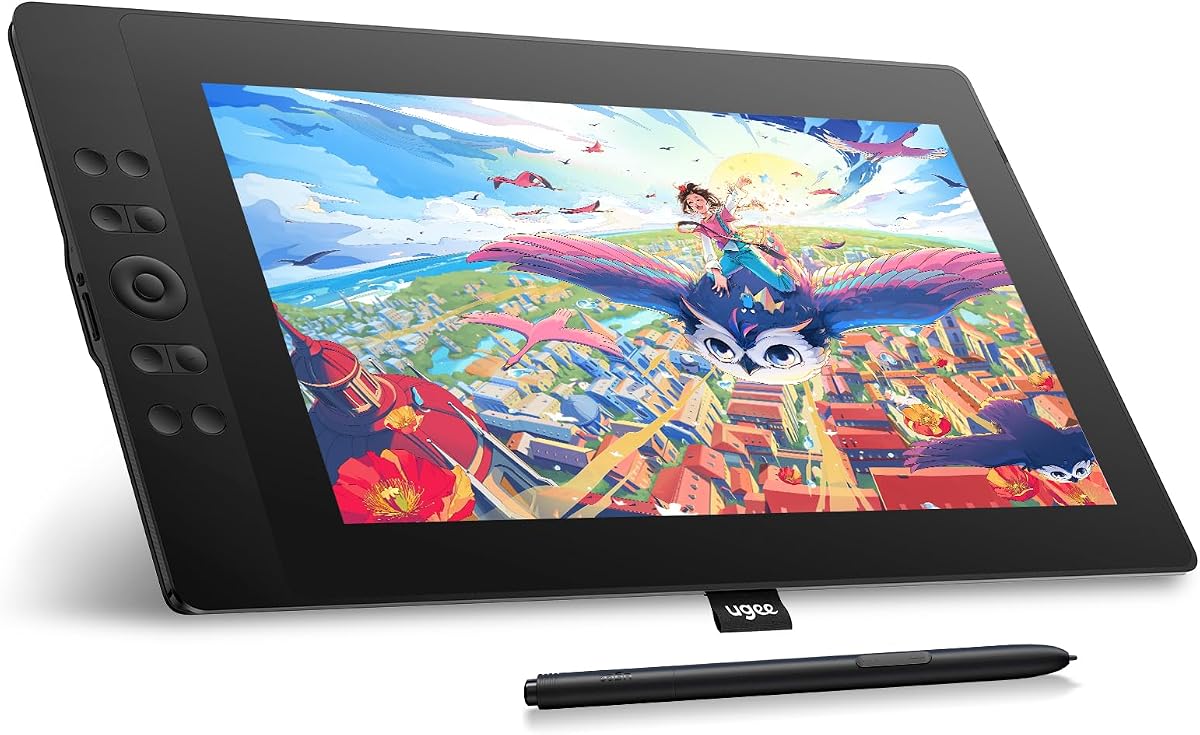
The UGEE UE16 boasts a wide color gamut allowing vivid and accurate color reproduction. Four color spaces enable seamless transitions between different visual experiences for varied tasks. Sixteen thousand pressure levels ensure rich and precise line work during creation.
We may earn a commission when you buy through this link, at no additional cost to you.
Its slim body is easy to handle and transport for mobile artists. The scroll wheel and shortcut keys offer tactile feedback for intuitive control over tools. Compatibility with Android devices expands possibilities for on-the-go creative sessions.
Setup involves checking cable connections carefully to ensure all features work properly. The driver may require time to learn but offers deep customization once mastered. The screen feels responsive and supports smooth strokes without lag.
This tablet suits designers needing accurate color for print or digital media. It offers professional features at an accessible price point. We recommend it for users prioritizing color fidelity and multi-device support.
Multiple color spaces allow adaptation to specific project requirements easily.
Slim form factor makes it easy to carry between studio and home.
We may earn a commission when you buy through this link, at no additional cost to you.
The VEIKK VK1200 provides essential features for beginners entering digital art. It includes two battery-free pens ensuring you always have a backup when needed. Tilt function allows natural shading without needing complex software adjustments.
We may earn a commission when you buy through this link, at no additional cost to you.
An artist glove helps keep hands clean and smudge-free during long sessions. The six shortcut keys offer quick access to tools like zoom or undo. Screen resolution is clear enough for learning and basic illustration tasks.
Build quality is functional though it may lack the durability of higher-end models. It works well for students needing a low-cost entry into pen displays. Setup is straightforward for most common operating systems without extra drivers.
This option is perfect for those unsure about committing to expensive hardware. It covers all basics required for starting digital illustration or design. We recommend it for hobbyists and students on tight budgets.
Includes glove and extra pens to support new users immediately.
Simple interface helps new artists focus on creativity over technical settings.
We may earn a commission when you buy through this link, at no additional cost to you.
The RubensTab T11 Pro works independently without requiring a separate computer connection. Its built-in battery supports several hours of continuous use for portable creativity sessions. Pre-installed drawing apps let you start creating immediately out of the box.
We may earn a commission when you buy through this link, at no additional cost to you.
Wi-Fi access allows cloud storage and tutorial browsing directly from the device. The adjustable stand case protects the screen while offering ergonomic viewing angles. A pressure-sensitive pen ensures precise strokes without needing charging or batteries.
Performance may lag behind full desktop systems for heavy tasks like 3D rendering. The screen size is smaller but sufficient for sketching and note-taking on the go. It is a versatile tool for both creative work and meetings.
This tablet is ideal for travelers or those without desktop setups at home. It offers freedom to draw anywhere without carrying a laptop. We recommend it for casual artists needing maximum portability.
Battery-powered design lets you create anywhere without finding a power outlet.
Can function as a digital notebook for meetings or class lectures.
We may earn a commission when you buy through this link, at no additional cost to you.
The VEIKK VK1200V2 upgrades pressure sensitivity to sixteen thousand levels for finer line control. This enhancement allows for more natural transitions between thick and thin strokes easily. The display covers over one hundred twenty percent of sRGB for rich and vivid colors.
We may earn a commission when you buy through this link, at no additional cost to you.
Its metal back is durable yet lightweight making it easy to transport. Two passive styluses are included so you can swap them without interruption. Tilt support adds another dimension to shading and brush stroke techniques.
The six customizable hotkeys help streamline common actions during art creation. Driver software is necessary for configuration but remains user-friendly once set up. Parallax is minimized thanks to the full-laminated screen design.
This model suits artists looking for detailed control without spending premium prices. It offers a balance of specs and cost for daily illustration work. We recommend it for users needing high pressure sensitivity on a budget.
Sixteen thousand pressure levels provide smooth variations in brush stroke weight.
Metal back adds durability without adding excessive weight for portability.
We may earn a commission when you buy through this link, at no additional cost to you.
The XPPen Artist 12 Pro Lite features a customizable red dial for convenient control over tools. Its full-laminated display eliminates parallax for a natural drawing feel on screen. The three-in-one cable connects easily without needing extra adapters for most computers.
We may earn a commission when you buy through this link, at no additional cost to you.
Tilt support allows intuitive shading adjustments without changing software settings constantly. Eight shortcut keys provide ample customization options for various art workflows. Compatibility spans Windows Mac and Linux for broad software integration.
The screen offers a wide viewing angle ensuring colors remain consistent from different positions. While it is a lite version it maintains core features essential for beginners and hobbyists. Build quality is solid for long-term use on a desk.
This tablet is excellent for users wanting specific control over tool sizes easily. It balances performance and simplicity well for educational or freelance work. We recommend it for artists prioritizing ease of use and portability.
Red dial allows quick access to critical controls without navigating menus.
Three-in-one cable simplifies setup with minimal hardware requirements.
We may earn a commission when you buy through this link, at no additional cost to you.
Choosing the right device requires balancing screen size, pen quality, and compatibility with your existing system.
Screen size affects how much space you have for drawing detailed artwork. A larger area allows broader strokes but increases weight for transport. Full HD resolution ensures lines appear smooth without pixelation during close work.
Look for at least eleven inches of active area for comfortable sketching. Higher resolution helps with intricate details in professional projects.
Pressure sensitivity determines how much pressure your pen can detect to change line weight. Higher levels like sixteen thousand offer smoother transitions than eight thousand levels. This feature is crucial for realistic shading and brush strokes in digital painting.
Prioritize models with at least eight thousand levels for a natural drawing feel. Advanced users benefit from higher sensitivity for nuanced control.
Color accuracy ensures your digital art matches prints or other media correctly. Wide color gamuts like sRGB or Adobe RGB help produce vibrant and true colors. Calibration tools help maintain consistency over time for professional output.
Check for coverage of ninety-nine percent sRGB if color fidelity matters. Factory calibration reports add confidence to the device performance.
Battery-free pens reduce maintenance since you do not need to charge them often. Ergonomic designs prevent hand fatigue during long creative sessions. Tilt support allows shading without changing software settings repeatedly.
Select a pen with a comfortable grip and replaceable nibs for durability. Tilt functionality enhances realism in your strokes.
Ensure the device connects to your computer via standard ports like USB-A or USB-C. Single-cable solutions simplify setup by combining power and data into one line. Check system requirements for Windows Mac or Linux before purchasing.
Confirm support for your operating system to avoid driver issues. USB-C connectivity offers modern convenience for newer laptops.
Sturdy construction ensures the tablet survives daily use and transport. Materials like metal backs provide strength without adding excessive weight. Protective screens reduce scratches and improve the drawing texture experience.
Look for anti-glare coatings to reduce eye strain during use. Warranty terms indicate manufacturer confidence in build quality.
Programmable keys streamline common actions like zooming or undoing errors quickly. Dials can control brush size or layer visibility without using a mouse. Customization helps tailor the device to specific software environments.
Check how many keys are available and if they are easy to reach. Flexible mapping options improve efficiency during creative work.
Standalone devices operate independently without needing a computer for basic drawing. Dependent tablets require a PC or Mac to function but may offer more power. Standalone options are more portable but usually have lower processing capability.
Choose standalone if you travel often or lack a desktop setup. Computer-dependent models often provide better software support and features.
Connect the device to your computer using the provided cables and install the necessary drivers for full functionality. Ensure your system recognizes the pen as an input device before launching creative software to avoid calibration issues.
Calibrate the screen periodically to maintain accurate cursor alignment between your pen tip and the display. Use the included anti-glare film to protect the glass from scratches and reduce eye strain during long sessions.
Store the tablet in a protective case when traveling to prevent physical damage to the screen or ports. Keep the pen tip clean and replace nibs as they wear down to maintain consistent line quality.
Most budget drawing tablets do not require high-end computers for basic use. They rely on the connected computer for processing power while handling input locally. Ensure your system meets minimum requirements for the software you plan to use.
Some basic functions work with generic drivers but full features require official software. Installing manufacturer drivers enables custom shortcut keys and pressure sensitivity. Without them you may miss out on important customization options.
Laminated screens minimize the gap between the glass and display reducing parallax. This makes drawing feel more natural and precise compared to older models. Non-laminated screens often show visible distance between pen and cursor.
Battery-free pens require no charging and offer uninterrupted workflow. They are lighter and more durable since they lack internal power components. Battery-powered pens need regular charging which can interrupt creative sessions.
Update your drivers and check for software conflicts that may cause latency. Ensure your USB cable is functioning properly and plugged into a high-speed port. Adjusting in-app settings can also reduce performance issues significantly.
Yes most models work well with online education tools like Zoom or Teams. They allow handwriting and annotations directly on the screen for clear teaching. Compatibility with note-taking apps makes them versatile beyond art tasks.
We reviewed ten models ranging from entry-level to advanced features to suit various budgets. Each option offers unique strengths like pressure sensitivity or color accuracy for different needs.
Prioritize screen size and pressure levels based on your specific artistic workflow. A balanced device will grow with your skills without requiring an expensive upgrade soon.
Prices and availability change frequently so verify current stock before purchasing. Investing in a reliable device now can save time and money on future hardware replacements.