
V-one Wired USB Gaming Controller
4.2Editor score
Multi-mode support
Vibration feedback function
Plug and play
Windows 11 compatible
Affordable price point
This guide compares the best joysticks for Windows 11 for flight and simulation gaming, covering compatibility, features, and user ratings to help you choose.
Finding the right joystick for Windows 11 can transform your flight and simulation gaming experience significantly. A quality controller offers precise input, ergonomic comfort, and reliable software support for modern titles and legacy software alike.
We evaluated ten top models based on compatibility, build quality, and feature sets relevant to Windows 11 users. Each product was assessed for ease of setup, button layout, and overall value in real-world gaming scenarios.
Every pick includes key specs and user feedback to help you match a controller to your specific needs. Note that availability and stock levels may change quickly, so checking current listings is always recommended before purchasing.
4.2Editor score

4.4Editor score

4.0Editor score
The following table provides a side-by-side overview of every model evaluated in this guide to help you compare features and compatibility at a glance.


The Thrustmaster T.16000M FCS stands out as a top pick for Windows 11 users seeking precision and durability. It carries a strong user rating and is designed to deliver consistent performance over time.
We may earn a commission when you buy through this link, at no additional cost to you.
Its H.E.A.R.T technology ensures that sensor accuracy does not degrade with use, which is rare in this category. The buttons use a braille style layout that allows you to identify controls without looking.
While it lacks a built-in throttle, the design focuses on core flight control accuracy. The ambidextrous form factor makes it comfortable regardless of which hand you use to operate the stick.
This model is ideal for pilots who prioritize long-term reliability and precise input. It is a solid choice for serious simulation gamers who want a controller that will not drift.
The Hall Effect sensors ensure that your movements remain accurate even after years of use, preventing the drift common in older joysticks.
The removable components allow left-handed and right-handed users to customize the grip to match their natural hand position for comfort.
We may earn a commission when you buy through this link, at no additional cost to you.
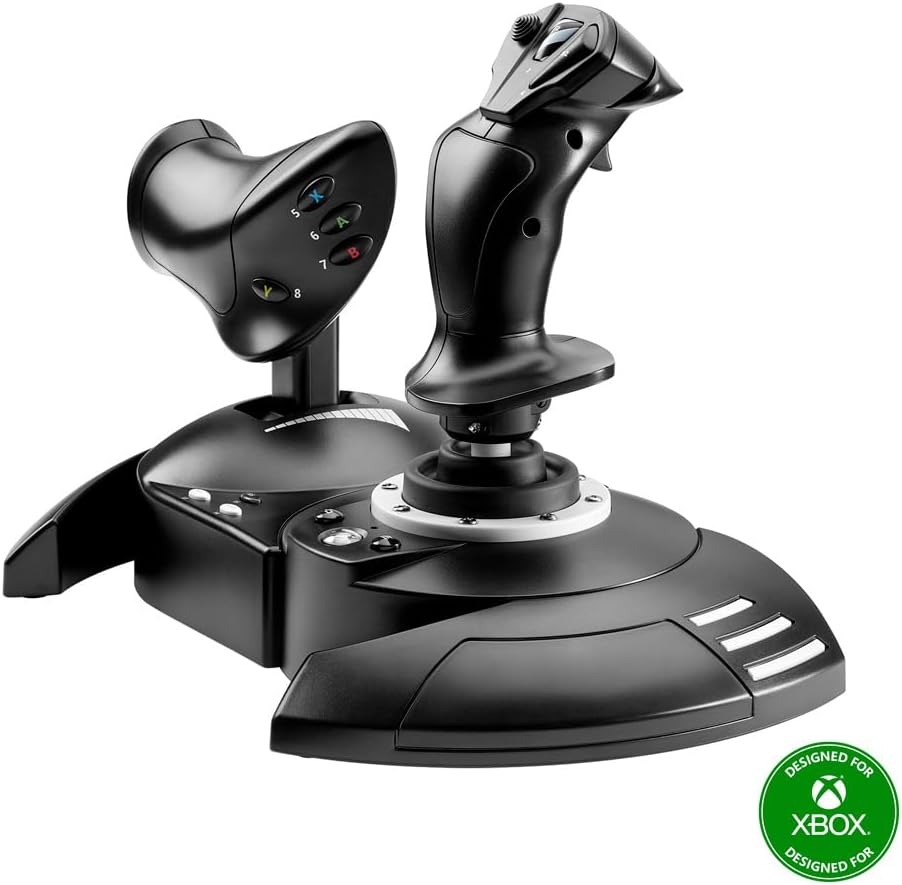
The Thrustmaster T-Flight Hotas One offers a complete hands-on-throttle-and-stick setup for Windows 11. It is a favorite for those who want both stick and throttle in one package.
We may earn a commission when you buy through this link, at no additional cost to you.
Its modular design lets you use the stick and throttle separately or together. This flexibility is great for players with limited desk space or those who prefer lap control.
The adjustable resistance helps reduce fatigue during long flights. However, the construction is lightweight, which may feel less substantial compared to premium metal options.
This is the right choice for casual pilots or beginners who want a full control scheme without breaking the bank. It works seamlessly with most flight sim software.
You can detach the throttle to use just the stick on your lap, making it ideal for smaller setups or portable gaming sessions.
It connects via USB and is recognized instantly by Windows 11, allowing you to jump straight into your simulation without installing drivers.
We may earn a commission when you buy through this link, at no additional cost to you.
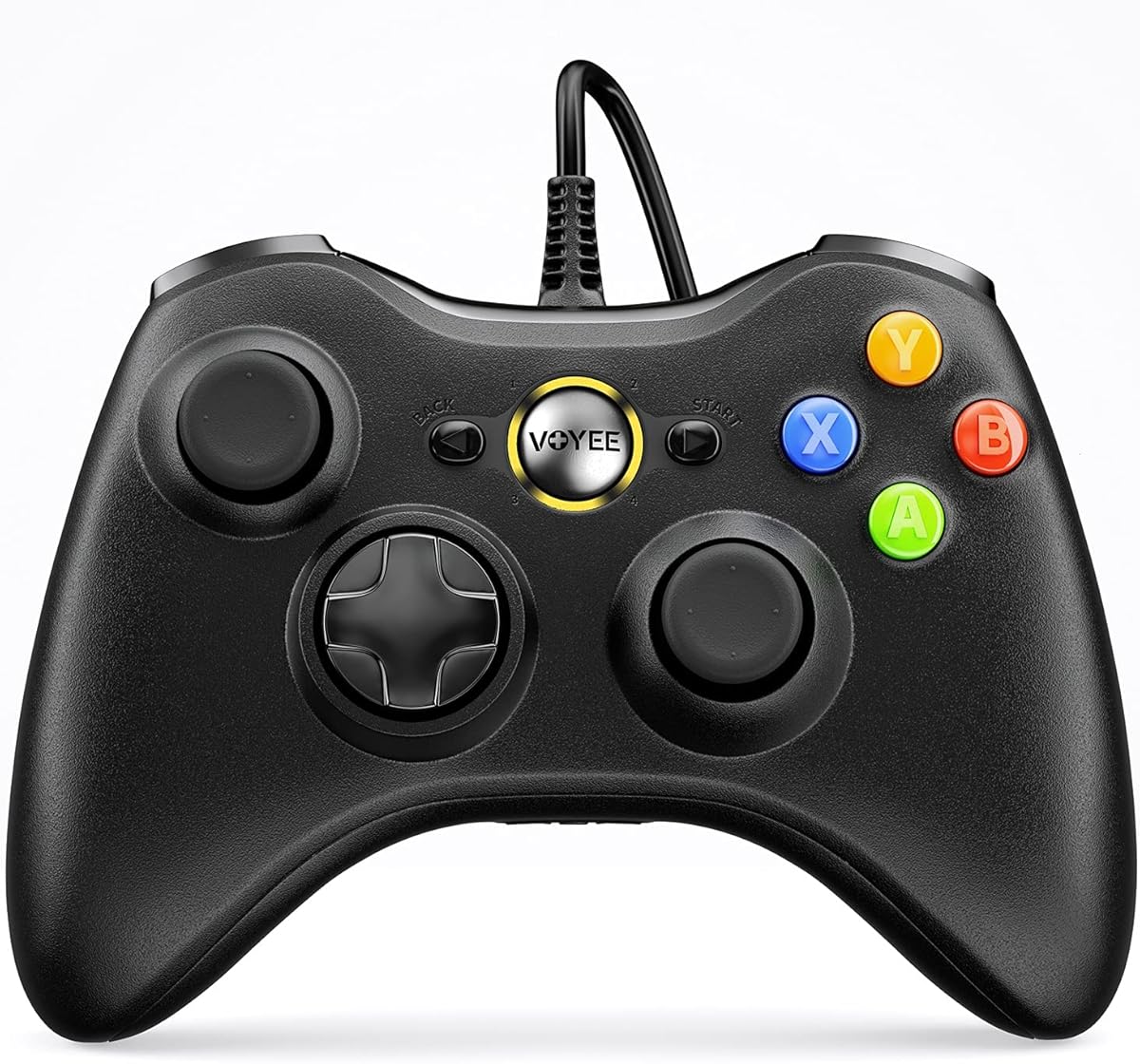
The V-one Wired USB Controller is an excellent entry point for Windows 11 users on a budget. It supports a wide range of devices including PCs, Steam, and Android tablets.
We may earn a commission when you buy through this link, at no additional cost to you.
It features vibration feedback and a turbo function that can enhance gameplay. The plug-and-play nature ensures you do not need to install drivers on modern Windows systems.
While the build is not as robust as premium models, it gets the job done for casual use. It is a great choice for those testing the waters of joystick gaming.
This controller is best for gamers who want functionality without high cost. It is versatile enough to work across different platforms with minimal fuss.
The controller works with Android devices if you have an OTG adapter, making it a versatile choice beyond just PC gaming setups.
Windows 11 detects the device immediately via Xinput, so you can start playing games right away without any configuration steps.
We may earn a commission when you buy through this link, at no additional cost to you.
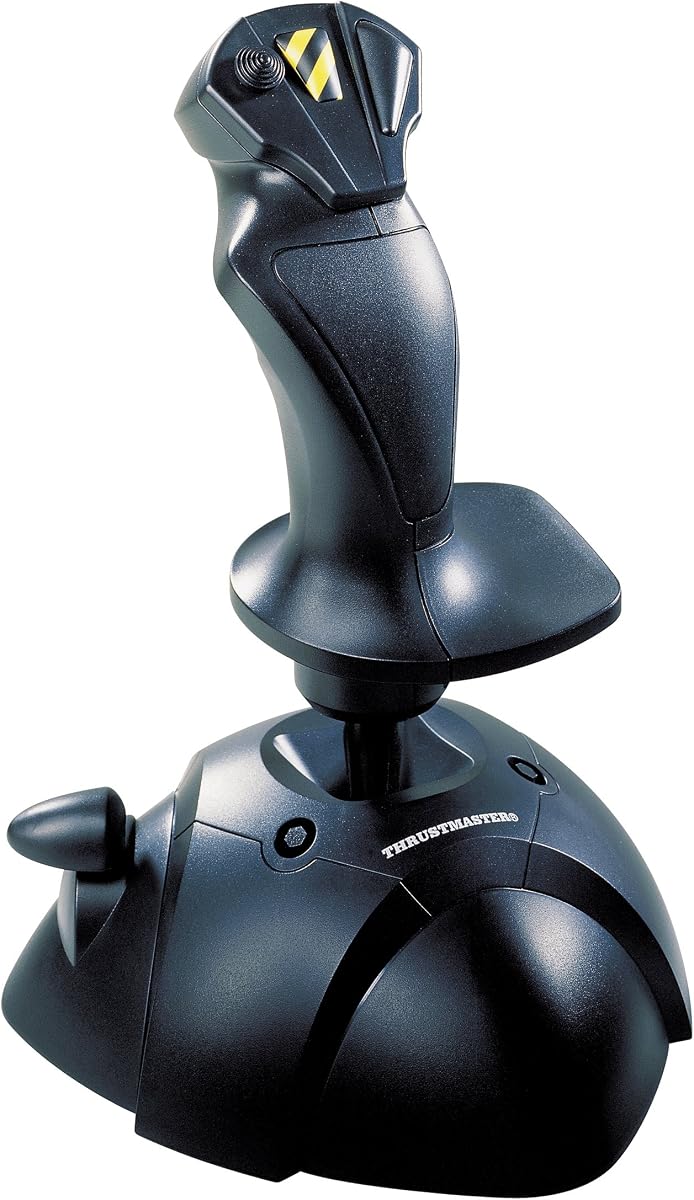
The Thrustmaster USB Joystick is a simple controller that still works well with modern Windows 11 systems. It features a dedicated POV button that makes camera control easier.
We may earn a commission when you buy through this link, at no additional cost to you.
It includes three axes and four buttons plus a trigger. This minimal layout is perfect for games that do not require complex inputs or extensive mapping.
The ergonomic handle provides a comfortable grip for extended sessions. However, the limited button count may be restrictive for more advanced simulation titles.
This is a good option for casual flight games or users who want a lightweight controller. It is easy to set up and offers reliable basic functionality.
The dedicated POV button allows you to look around the cockpit easily without reaching for keyboard shortcuts during critical maneuvers.
Its small footprint means it does not take up much desk space, which is helpful for shared workspaces or smaller gaming desks.
We may earn a commission when you buy through this link, at no additional cost to you.
The Microsoft Sidewinder Precision 2 is a classic design that remains functional on Windows 11. It stands out with a rotating handle for precise rudder control.
We may earn a commission when you buy through this link, at no additional cost to you.
It allows you to save programmed commands into game-specific profiles. This feature helps customize the experience for different flight scenarios without reconfiguring each time.
The throttle range is broad, offering good precision for takeoff and landing. While the design is older, it still delivers a reliable experience for simulation fans.
This model is great for users who value classic ergonomics and rudder control. It is a stable option for flight sim gamers who prefer a physical throttle range.
The rotating handle gives you fine control over yaw inputs, which is essential for realistic flight simulation and landing on runways.
You can save specific configurations for different aircraft, ensuring your controls are always set correctly for the mission at hand.
We may earn a commission when you buy through this link, at no additional cost to you.
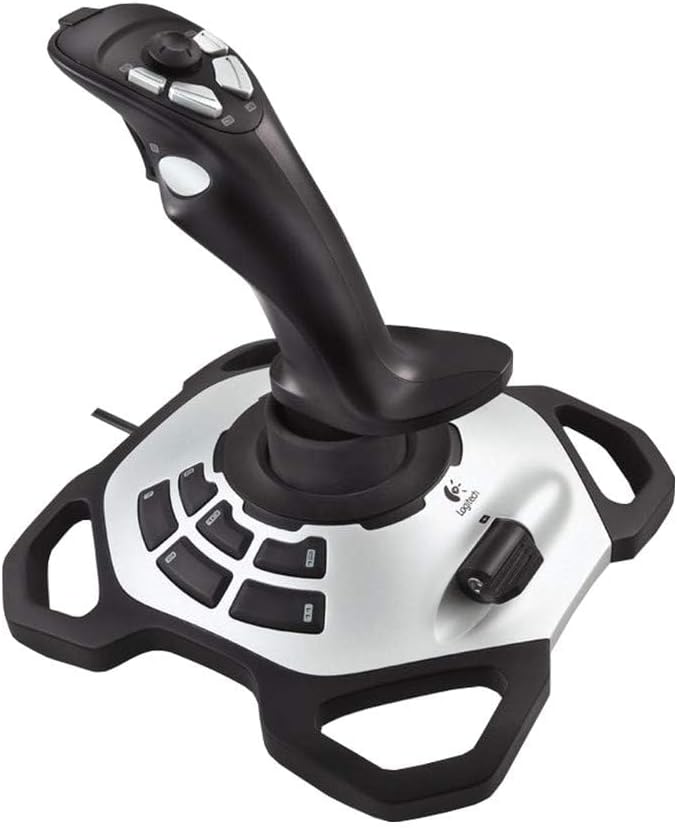
The Logitech Extreme 3D Pro is a solid fightstick designed for performance. It provides precise axis control and a responsive rapid fire trigger for combat scenarios.
We may earn a commission when you buy through this link, at no additional cost to you.
The grip is comfortable and durable enough for long sessions. It is recognized by Windows 11 without issue, making setup straightforward for new users.
While it lacks advanced software customization, the hardware is reliable. The rapid fire trigger adds a tactical edge for games that require quick repetitive inputs.
This is a great pick for those who want a proven stick for flight or combat sims. It balances performance with affordability effectively.
The rapid fire trigger helps in dogfight scenarios, allowing you to fire multiple shots quickly with a single button press.
The axis calibration is stable, so you get smooth control inputs without jitter, which is key for accurate aiming in simulators.
We may earn a commission when you buy through this link, at no additional cost to you.
The VOYEE PC Controller is designed to work like an Xbox controller on Windows 11. It is a good option for games that support standard gamepad inputs.
We may earn a commission when you buy through this link, at no additional cost to you.
It features rumble feedback that enhances immersion during gameplay. The ergonomic design ensures comfort even during extended play sessions.
While not a dedicated flight stick, it works well for general gaming. The long cable gives you flexibility in where you sit at your desk.
This is ideal for users who want a reliable controller for mixed gaming genres. It is responsive and durable enough for daily use.
It works with many titles that support Xbox inputs, making it a versatile addition to your gaming setup beyond flight sims.
The rumble feature adds impact to in-game events, helping you feel the action as you control your vehicle or character.
We may earn a commission when you buy through this link, at no additional cost to you.
The Thrustmaster SimTask FarmStick is tailored for Farming Simulator 25 on Windows 11 and Xbox. It offers precise control for operating heavy machinery in simulations.
We may earn a commission when you buy through this link, at no additional cost to you.
It includes Hall Effect sensors that prevent drift and wear. This ensures your inputs remain smooth and accurate over time, even with frequent use.
There are up to thirty-three inputs to manage all functions without a keyboard. This lets you focus on gameplay rather than memorizing keybinds.
This is the ideal pick for farming simulation fans. It is built to handle the unique needs of tractor and equipment control effectively.
The stick layout is optimized for loaders and tractors, giving you direct access to functions that are often hard to reach on a keyboard.
With over thirty inputs, you can map almost every function in the game directly to the joystick, creating a true cockpit experience.
We may earn a commission when you buy through this link, at no additional cost to you.
The Logitech G X56 H.O.T.A.S is a high-end system offering over one hundred and eighty-nine programmable controls. It is a top choice for serious simmers on Windows 11.
We may earn a commission when you buy through this link, at no additional cost to you.
It features RGB lighting and adjustable spring force for a personalized experience. The design is optimized for VR to help you navigate controls easily.
The setup requires two USB ports and significant desk space. The sheer number of buttons means it will take time to map effectively for your favorite titles.
This is the ultimate choice for users who want a full cockpit feel. It is a powerful investment for those who demand maximum control and immersion.
The tactile feedback and button layout are designed to help you identify controls by feel when using VR headsets.
Four spring options let you adjust the stick resistance to match your preference for light or heavy control feel.
We may earn a commission when you buy through this link, at no additional cost to you.
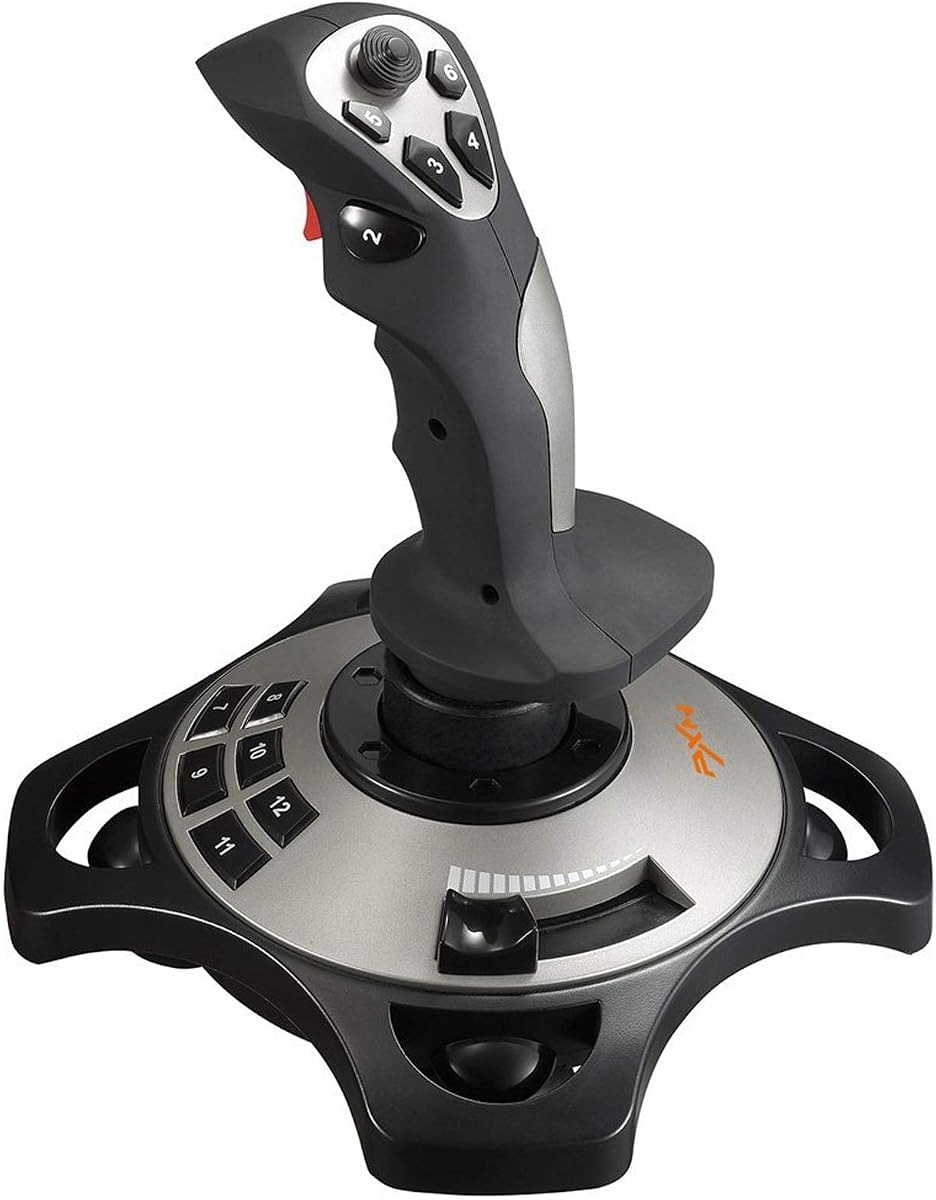
The PXN 2113PRO is a versatile controller for PC flight sims. It supports vibration and is designed to work with Windows 11 and other Windows systems.
We may earn a commission when you buy through this link, at no additional cost to you.
It includes twelve programmable buttons and a hat switch for precise control. The base has suction cups to keep the stick stable on your desk.
Vibration is enabled by a switch and may need driver adjustment to feel strong. It is a solid budget option for those who want flight controls at home.
This model is best for players who want a dedicated flight stick without high cost. It offers the features needed for popular titles.
The four suction cups on the bottom help anchor the stick firmly during aggressive maneuvering so it does not slide.
You can adjust the vibration strength in the driver to ensure feedback is noticeable even at lower game settings.
We may earn a commission when you buy through this link, at no additional cost to you.
Selecting the right controller depends on your specific gaming needs and hardware setup. This section outlines the key factors to consider before making a purchase.
Ensure the joystick supports Windows 11 explicitly. Some models may require drivers to function correctly on newer systems or may be limited to specific game types.
Check the product description for operating system support. A device that works on Windows 10 may not always work on Windows 11 without updates.
More buttons allow for more in-game functions without relying on a keyboard. Consider how many controls you need for your preferred simulation or flight game.
Programmatic flexibility is key. Look for controllers that allow you to remap inputs easily to match your play style.
High-quality axes ensure smooth and accurate movement. Hall Effect sensors are preferred as they do not wear out over time like traditional potentiometers.
Precision reduces drift and jitter. This is vital for maintaining control during critical flight maneuvers or combat scenarios.
A durable build ensures the controller can withstand regular use. Materials like metal components add weight and stability to the base of the stick.
Consider the weight of the unit. Heavier bases often stay in place better during aggressive inputs.
Comfort is essential for long gaming sessions. Look for grips that fit your hand size and allow you to reach buttons without strain.
Ambidextrous designs are helpful if you have a smaller desk or prefer left-handed use. Some models allow you to switch components easily.
Some controllers include a separate throttle unit while others integrate it into the stick. Dedicated throttles often provide more realistic control for flight sims.
A modular design offers flexibility. You can choose to use only the stick if you prefer or add the throttle for a full HOTAS setup.
Software tools allow you to create profiles for different games. Look for utilities that support Windows 11 and offer easy mapping interfaces.
Driver support ensures you get the most out of your device. A lack of updates can limit the usability of new features on Windows 11.
Consider the price relative to the features offered. Budget models may lack advanced sensors but can still deliver a good experience for casual gamers.
Premium models offer more control and durability. If you plan to use the joystick heavily over years, investing in higher end hardware may be worth it.
Connect the joystick to a USB port on your PC before launching your game. Windows 11 should recognize the device automatically. Check device manager if you need to update drivers.
Calibrate the joystick in system settings to ensure centering is accurate. This can be found in the Control Panel under Devices and Printers or in the game control settings.
Clean the controls regularly with a soft dry cloth. Dust and debris can accumulate around buttons and cause sticking or missed inputs during gameplay.
Most modern joysticks work with Windows 11 without issues. However some older models may require specific drivers to function correctly. Always check the product specifications before buying to confirm support for your operating system.
Open Control Panel and select Devices and Printers. Right click on your joystick and choose Game controller settings. Go to properties and use the test tab to adjust calibration settings as needed for better accuracy.
Yes many games support joystick inputs beyond flight sims. Racing games space shooters and even some RPGs can use a joystick. You may need to map the controls manually within the game settings.
HOTAS stands for Hands On Throttle And Stick. It means you have separate devices for throttle and stick controls. This setup is popular for flight sims as it lets you manage more functions with one hand.
Wireless models are convenient but can have lag or connection drops. Wired joysticks are generally more reliable for flight sims where precise timing is important. Choose wireless only if you prioritize setup flexibility.
Most modern controllers work via plug and play without drivers. However some advanced models need specific software for customization. Check the manufacturers site to see if drivers are recommended for best performance.
We have covered ten top models ranging from budget options to premium systems. Each offers different strengths depending on your preferences for precision build and price.
Focus on compatibility and ergonomics when making your choice. A controller that feels comfortable and works well with your setup will always serve you better.
Remember to verify current listings before buying as features or stock may vary. We hope this guide helps you find the right joystick for your gaming needs.