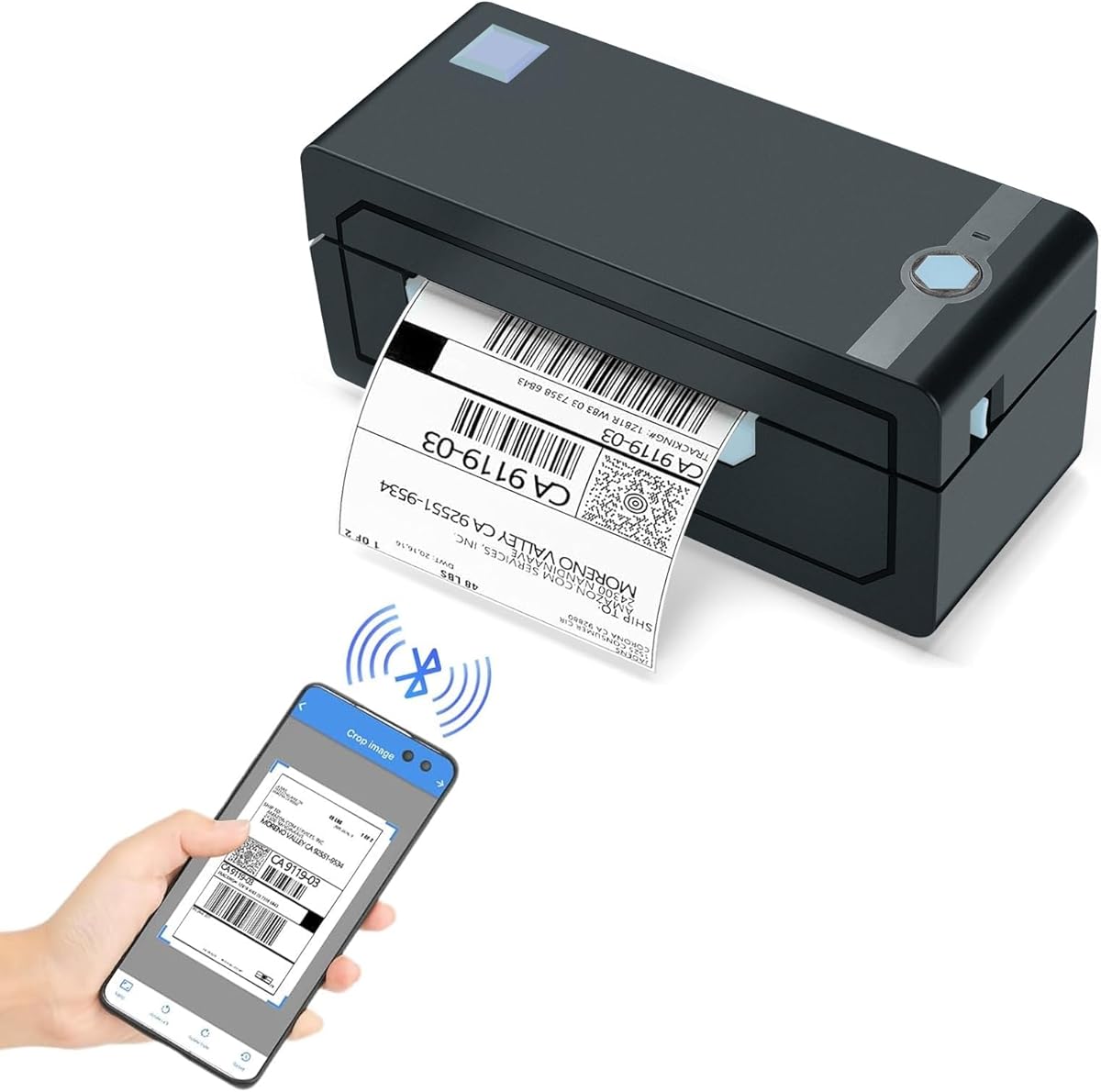
JADENS Bluetooth Thermal Shipping Label Printer
4.4Editor score
Wireless Bluetooth printing
Affordable entry price point
Compatible with major shipping apps
Finding a reliable label printer that works seamlessly with Linux can be challenging. Many manufacturers focus on Windows and macOS, leaving open-source users with limited options for printing shipping or office labels effectively.
We evaluated ten top-rated models based on driver support, connectivity options, print quality, and platform compatibility. Our goal is to highlight devices that offer stable performance and ease of use specifically for Linux environments.
Each selection includes detailed specs and real-world performance notes to help you choose the right tool. Remember that prices and availability fluctuate, so always verify current deals before making your final purchase decision today.
4.4Editor score

4.0Editor score
4.6Editor score
As an Amazon Associate we earn from qualifying purchases.
This side-by-side comparison highlights key specifications across all ten selected models to help you quickly identify which device best matches your specific Linux workflow requirements.


The iDPRT SP310 stands out as the most Linux-friendly option in this roundup. It explicitly lists Linux support among its drivers and delivers consistent performance without proprietary lock-in. Its 203 DPI resolution ensures clear barcodes and text for professional shipping needs.
We may earn a commission when you buy through this link, at no additional cost to you.
This model excels in speed and stability. It prints up to four inches per second, which is significantly faster than many competitors in the same price range. The dedicated USB connection prevents the dropouts common with wireless setups, making it ideal for high volume environments.
While it lacks Bluetooth connectivity, the wired setup ensures reliability. The label width range is slightly narrower than full size shipping printers, but it covers most standard office and inventory tags. The open system allows you to use third party labels without chip restrictions.
If you run a Linux server or desktop environment and need a dependable printer for inventory or shipping, this is the top choice. It balances cost, speed, and software compatibility better than any other option currently available on the market.
Unlike many brands that rely on generic drivers, iDPRT provides specific tools for Linux systems. This reduces installation friction and ensures the printer is recognized immediately upon connection without complex configuration steps.
The printer bypasses proprietary microchip limitations found in other brands. You can purchase labels from any vendor that fits the size specifications, significantly lowering your long-term operational costs compared to locked ecosystems.
We may earn a commission when you buy through this link, at no additional cost to you.
The JADENS thermal printer offers an accessible entry point for Linux users needing basic shipping capabilities. While its Bluetooth features are more robust on mobile, the USB connection works reliably with Linux desktops. It handles standard 4×6 shipping labels effectively for small businesses.
We may earn a commission when you buy through this link, at no additional cost to you.
Its standout feature is the versatility in label handling. You can use both fanfold and roll labels, giving you flexibility in how you store and feed media. The setup process is straightforward, with instructions and troubleshooting videos provided to assist new users quickly.
Bluetooth pairing on Linux can be tricky compared to Windows, but the USB fallback ensures you never lose connectivity. The print quality is sufficient for most e-commerce needs, though it may not match the durability of commercial grade units over years of heavy use.
For those on a tight budget who still need a capable machine for occasional shipping, this model delivers value. It avoids the high cost of premium brands while providing the essential features required to get packages out the door efficiently.
Support for both fanfold and roll labels means you can adapt to whatever stock you have on hand. This flexibility reduces waste and allows you to use existing inventory without needing to purchase specific formats.
The USB connection often works with standard CUPS drivers on Linux without needing proprietary installation. This reduces the technical barrier for users who prefer plug-and-play functionality over complex software setups.
We may earn a commission when you buy through this link, at no additional cost to you.
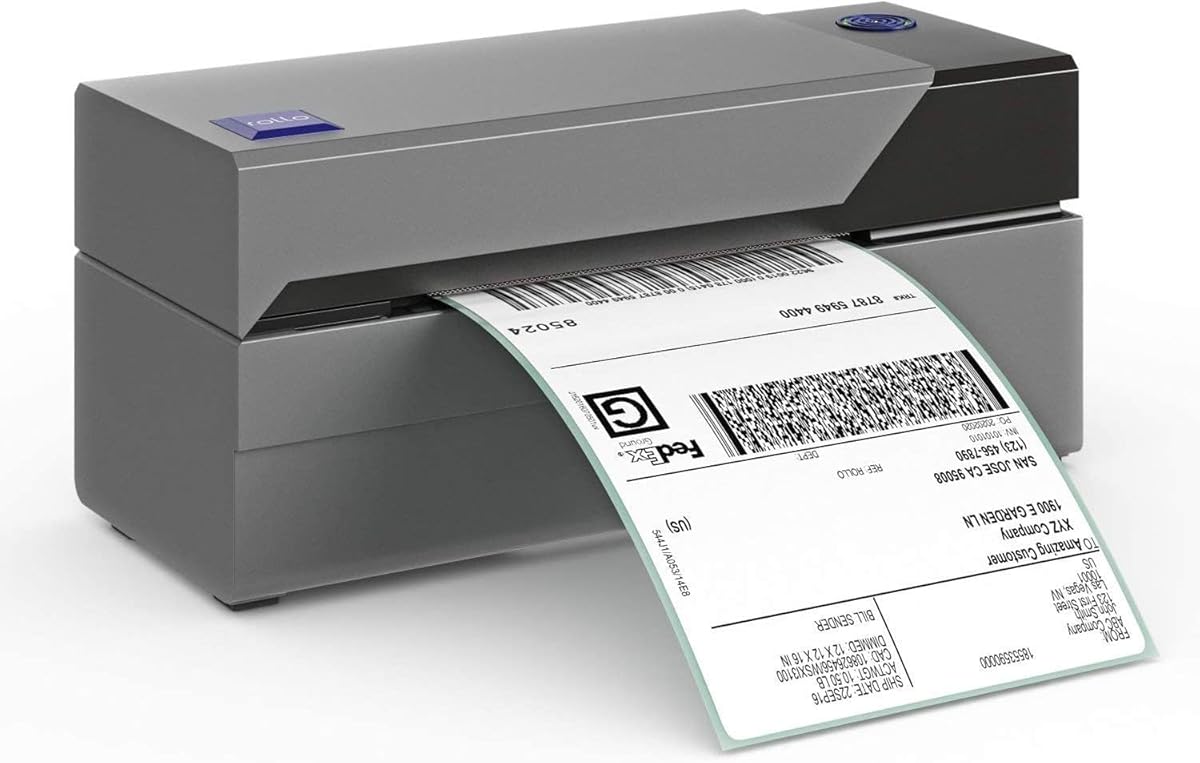
The Rollo printer is a workhorse designed for businesses that demand reliability. Its commercial grade build quality ensures it can withstand the rigors of daily shipping operations. Linux users benefit from a strong community of developers who maintain drivers for this device.
We may earn a commission when you buy through this link, at no additional cost to you.
Speed is a major advantage here. Printing at 150mm per second means you can clear a queue of labels rapidly. The high resolution 203 DPI head produces crisp barcodes that scan easily, reducing errors in logistics and fulfillment processes.
While it lacks Bluetooth, the USB connection is robust and consistent. The cost savings come from the ability to use generic labels without chip penalties. Over time, this feature offsets the higher upfront investment required to purchase the unit.
If you manage a warehouse or high volume online store, this printer justifies the cost. It minimizes downtime and delivers professional results every time. The active community support also means you are rarely left without help if you encounter technical issues.
Built to handle continuous operation, this unit does not overheat easily during long printing sessions. The internal components are designed for longevity, making it a smart long-term investment for serious operations.
The Rollo community is known for sharing tips and custom drivers. Even if official documentation is limited, you can often find solutions on forums that make integration into Linux workflows smoother than with other brands.
We may earn a commission when you buy through this link, at no additional cost to you.
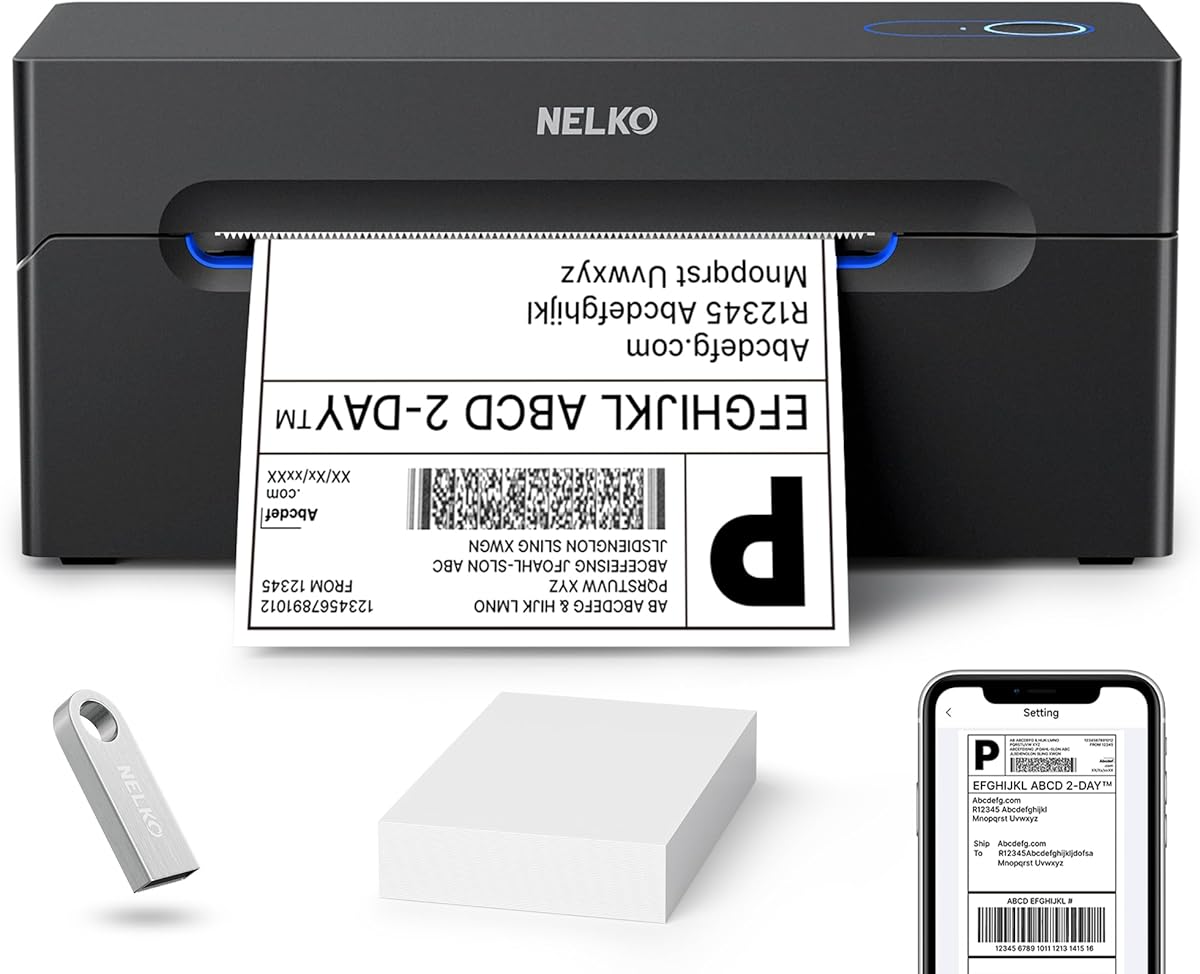
Nelko provides a user-friendly experience through its dedicated app. While Linux users may need to rely on USB, the interface for designing labels is intuitive. The compact design allows it to fit on small desks without taking up much valuable space.
We may earn a commission when you buy through this link, at no additional cost to you.
The speed of 150mm per second matches higher end models. This efficiency helps keep your workflow moving without unnecessary delays. The thermal technology ensures you never have to buy ink or toner, keeping operational costs low for small setups.
Bluetooth pairing on desktop Linux is less direct than mobile, but USB works well. The printer supports a wide range of platforms which helps when sharing resources in a mixed environment. However, official Linux support is not as prominent as other brands.
If you prioritize a clean software experience and need a portable printer that can move easily between rooms, this is a strong contender. It balances performance and usability well for those who do not require heavy commercial durability.
The companion app allows for quick layout adjustments and PDF uploads. This simplifies the process of preparing custom labels without needing advanced graphic design skills or complex desktop software.
The physical size is optimized for tight workspaces. This makes it suitable for home offices where every inch of desk real estate counts. You can store it easily when not in use.
We may earn a commission when you buy through this link, at no additional cost to you.
The P-touch CUBE Plus is designed for creative labeling rather than logistics. It excels at making names tags, file markers, and organizational labels. For Linux users needing simple office organization, it offers a convenient wireless solution.
We may earn a commission when you buy through this link, at no additional cost to you.
The included starter tapes give you immediate use without extra purchases. The software ecosystem allows for significant customization. You can choose from various fonts and symbols to match your specific aesthetic needs for personal or home projects.
Since it prints tapes up to one inch wide, it is not suitable for shipping labels. The Bluetooth connection works well with mobile devices. Linux compatibility is primarily focused on desktop design tools which may have varying support levels.
If you need to organize a home office or school supplies, this device is perfect. It is less about shipping packages and more about categorization. The compact design makes it easy to store away when you are done with a project.
Accessing pre-designed templates saves time on formatting. You can select from options designed for retail, home, or business use. This reduces the effort needed to create professional looking labels quickly.
The unit is built to work seamlessly with phones and tablets. While this enhances portability, it means desktop integration is secondary. It is best suited for users who prefer designing on a smaller screen.
We may earn a commission when you buy through this link, at no additional cost to you.
The QL-700 is a standard for office environments where speed matters. It prints nearly 100 labels per minute, which is exceptional for administrative tasks. Linux users may need to explore third party driver options since official support has shifted over time.
We may earn a commission when you buy through this link, at no additional cost to you.
The drop-in roll system makes changing media incredibly fast. You do not need to fiddle with complex mechanisms to reload tape. The automatic cutter ensures each label is perfectly separated, reducing manual effort in your workflow.
Brother uses proprietary tapes which can increase costs over time. However, the speed and ease of use often justify the expense in professional settings. The unit is compact enough to fit under a monitor on most desks.
If you need to produce many address labels or file tags quickly, this machine delivers. It is a reliable workhorse for office tasks. While not open to generic labels, the convenience factor makes it a popular choice for many businesses.
Printing at 93 labels per minute drastically reduces wait times. This is essential when you have a large batch of files to label or a sudden influx of shipping tasks to complete.
The automatic cutter trims every label precisely. This prevents uneven edges and ensures a professional look. It also saves you the hassle of manually cutting each individual label after printing.
We may earn a commission when you buy through this link, at no additional cost to you.
The QL-570 offers higher resolution than many competitors. This makes text and small barcodes much sharper. For professional environments where readability is critical, this clarity provides a distinct advantage over standard printers.
We may earn a commission when you buy through this link, at no additional cost to you.
It prints at 68 labels per minute, which is still fast for most office needs. The included software provides extensive customization options. You can design custom layouts that fit your specific branding or organizational requirements.
While it is slightly slower than the QL-700, the print quality often compensates. The two year warranty offers peace of mind regarding hardware reliability. However, the proprietary tapes remain a consideration for long-term operating costs.
Choose this model if you prioritize sharp text and detailed graphics on your labels. It is ideal for inventory management where barcode precision is essential. The balance of speed and quality makes it a versatile tool.
The 300 x 600 dpi resolution ensures every character is crisp. This helps prevent scanning errors in busy warehouses. It also makes printed labels look more professional to end users.
The P-touch software allows for deep customization. You can save templates and reuse them later. This consistency helps maintain a professional appearance across all your labeling projects.
We may earn a commission when you buy through this link, at no additional cost to you.
The SUPVAN T50M Pro comes ready to use with included tapes. The free app offers a variety of fonts and icons. This makes it accessible for anyone looking to organize their space without investing in expensive software.
We may earn a commission when you buy through this link, at no additional cost to you.
It supports square and round labels which adds versatility for different uses. The Bluetooth connectivity works well with mobile devices. Linux users may find it less useful for desktop printing but good for home organization tasks.
The image quality is good for small text and icons. It is perfect for labeling storage bins and kitchen items. The wide compatibility means you can use different shapes without needing multiple machines.
If you need a budget friendly option for home use, this model is excellent. It covers most standard home labeling needs effectively. The included accessories make it a complete package right out of the box.
The machine handles square and round labels seamlessly. This flexibility allows you to choose the best fit for your container. It is not just limited to rectangular stickers like many other models.
Coming with three tapes ensures you can start immediately. You do not need to buy extra supplies to get going. This makes it a hassle-free choice for immediate organization projects.
We may earn a commission when you buy through this link, at no additional cost to you.
The ETIKEZ printer is designed for efficiency in small spaces. Its 203 DPI resolution ensures clear shipping labels. While the app is the primary method for mobile printing, USB connection remains an option for more stable desktop usage.
We may earn a commission when you buy through this link, at no additional cost to you.
Setup is straightforward with clear instructions provided. The Labelnize app simplifies the process of selecting paper sizes. This user friendly approach reduces the learning curve for new users trying to get started.
Bluetooth pairing on Linux can require specific steps. However, the USB connection ensures you can still print without wireless issues. The compact footprint means it fits easily on a shelf or desk corner.
This model is ideal for occasional shipping needs. It is not designed for heavy daily use but performs well when you need to send a few packages. The balance of features and size makes it a good value.
The app guides you through paper gap selection. This prevents alignment issues before printing begins. It adds a layer of safety to the process that reduces paper waste.
The design is specifically optimized for small studios. You can place it on a shelf without taking up desk space. This is perfect for those with limited room for office equipment.
We may earn a commission when you buy through this link, at no additional cost to you.
The PT-D610BT combines Bluetooth and USB for maximum flexibility. The LCD screen lets you check your text before printing. This reduces waste and ensures accuracy on every label you produce.
We may earn a commission when you buy through this link, at no additional cost to you.
It includes business specific templates that save time. You can store up to 90 labels in memory for quick reprints. This feature is particularly useful for recurring tasks like tagging equipment or files.
Linux compatibility is mainly through USB. The Bluetooth feature is best utilized with mobile devices. The build quality is solid and designed for office use environments.
If you need a professional tool for labeling assets or inventory, this is a strong option. The ability to preview and store labels adds significant efficiency. It is a reliable choice for maintaining organized business records.
The LCD display shows the full label before printing. You can catch errors early in the process. This saves time and prevents wasting tape on incorrect labels.
Storing frequent labels in memory speeds up workflow. You can recall them instantly without redesigning. This is great for labels you use regularly every day.
We may earn a commission when you buy through this link, at no additional cost to you.
Selecting a label printer for Linux requires attention to driver support and connectivity options.
Ensure the printer has dedicated drivers for Linux or works with standard CUPS systems. Some models require proprietary software that may not be available on Linux. Check user forums to confirm community support exists before purchasing.
Prioritize brands with open driver options to avoid compatibility issues.
USB is the most reliable option for Linux. Bluetooth can be complex to pair and configure on desktops. Decide if you need wireless mobility or if a wired connection fits your desk setup better.
Choose USB for stability and ease of configuration.
Determine the size of labels you need most often. Shipping labels usually require 4×6 inches while inventory tags might be smaller. Ensure the printer supports the width range you need for your operations.
Select a printer that covers your specific label size requirements.
High volume operations benefit from faster print speeds. Look for models that can print at least 100mm per second. Slower printers may cause bottlenecks when processing large batches of orders.
Opt for higher speeds if you handle many labels daily.
Some printers use proprietary chips in the label rolls. Others allow you to use generic labels from any brand. Generic options save money over time but may lack specific tracking features.
Consider long-term operating costs when choosing a model.
Commercial grade printers last longer than basic home models. If you plan on heavy daily use, invest in a more durable unit. Metal parts and better motors help maintain consistency over time.
Look for robust construction for reliable long-term use.
Design software varies between brands. Some offer free tools while others require subscriptions. Ensure the software supports the layouts and barcodes you need for your business tasks.
Check if software fits your budget and functional needs.
A good warranty protects your investment. Two years is common for professional models. Also check if customer support responds quickly to technical issues that may arise.
Verify warranty terms before finalizing your purchase.
Start by connecting your printer via USB or installing the necessary drivers. Ensure your Linux system recognizes the device by checking the printer settings menu. You may need to add the printer manually if it does not appear automatically.
Load the label rolls carefully according to the manufacturer guide. Ensure the thermal side of the tape is facing the print head. Use the calibration button to teach the printer the exact size of the label.
Keep the print head clean with a soft cloth or alcohol wipe if prints become blurry. Avoid exposing the printer to extreme heat or dust which can damage internal components. Store the unit in a dry place when not in use.
Not all label printers have native Linux drivers. You must check product specifications for Linux support. Some work via generic CUPS drivers while others need proprietary tools.
Many printers allow generic labels. Some brands use proprietary chips. Check if the printer has an open system before buying specific tapes.
USB is more stable on Linux. Bluetooth can require extra pairing steps. For reliable desktop use, USB is usually the better choice.
203 DPI is standard for shipping labels. Higher resolution helps with small text. Ensure your needs match the available resolution options.
Most printers have a calibration button. Press and hold to start the process. Follow the on-screen or manual prompts.
Thermal printers do not use ink or toner. They use heat to print on labels. This saves on operational costs and mess.
We have reviewed ten solid options for Linux users. The iDPRT SP310 leads in native support. Rollo and JADENS offer strong value for shipping.
Prioritize USB connectivity and open label support. This ensures long-term ease of use. Avoid proprietary chips that raise costs over time.
Prices change frequently so check current deals before buying. Verify compatibility notes on the product page to ensure your Linux system is fully supported.