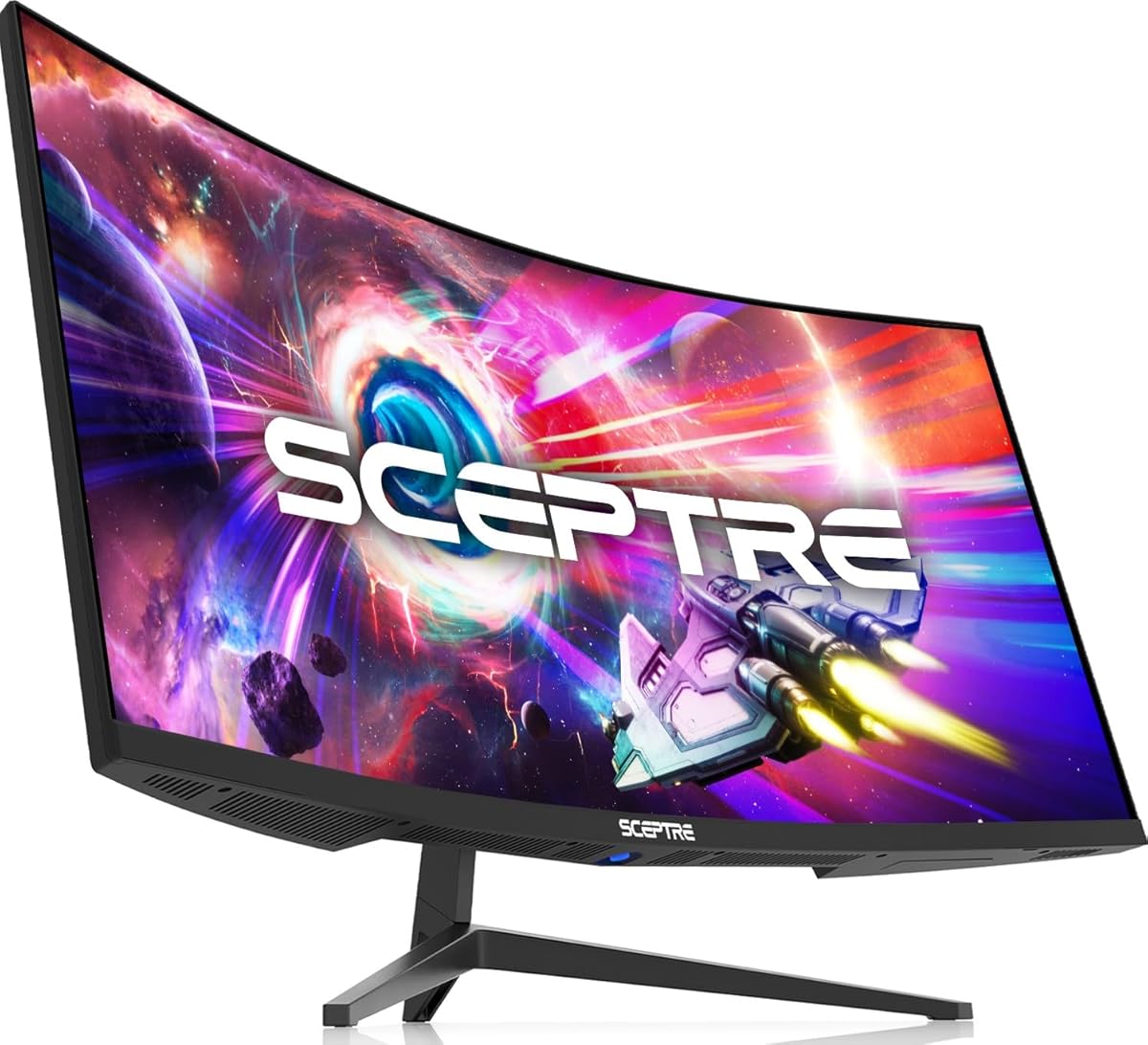
Sceptre 34-Inch Curved Ultrawide
4.2Editor score
1ms response time
180Hz refresh rate
WQHD resolution
Compare the top 34 inch curved ultrawide monitors for productivity and gaming with detailed specs and expert insights.
Finding the right display can transform your workflow. A 34 inch curved ultrawide monitor offers immersive visuals and ample screen real estate for multitasking effectively across multiple applications simultaneously.
We compared ten leading models based on resolution, refresh rate, color accuracy, and ergonomic features. Our analysis highlights performance, connectivity options, and overall value for professionals and gamers alike.
Each pick showcases key strengths and trade-offs to help you decide. Prices and availability change frequently, so verify current details before purchasing to ensure you get the best deal available today.
4.2Editor score

4.6Editor score

4.6Editor score
This side-by-side comparison helps you evaluate key specifications across all ten models to find the perfect fit for your specific needs and budget constraints.


This LG UltraWide monitor stands out as a top performer for productivity and light entertainment. With its WQHD resolution and high sRGB coverage, it delivers sharp visuals and accurate colors for various tasks.
We may earn a commission when you buy through this link, at no additional cost to you.
The USB-C port supports up to 65W power delivery, simplifying your desk setup by charging laptops while transmitting data. OnScreen Control features allow efficient multitasking with split-screen capabilities and picture-by-picture modes.
While it lacks the high refresh rates favored by competitive gamers, the 100Hz rate is smooth for general use. The stand offers tilt and height adjustments, though it lacks swivel functionality for flexible viewing angles.
It is ideal for professionals and home office users seeking a balanced display. The combination of color fidelity, connectivity, and design makes it a strong choice for everyday computing needs.
The OnScreen Control software enhances workflow efficiency by managing windows and settings directly from the desktop environment.
Multiple HDMI and DisplayPort inputs ensure compatibility with various devices alongside the convenient USB-C connection.
We may earn a commission when you buy through this link, at no additional cost to you.
The Sceptre model offers impressive performance for a budget-conscious buyer. Its WQHD resolution and 180Hz refresh rate provide a smooth visual experience suitable for gaming and multimedia consumption without breaking the bank.
We may earn a commission when you buy through this link, at no additional cost to you.
Fast response times help reduce ghosting during dynamic scenes. The LED backcover lights add a modern aesthetic touch. Built-in speakers save desk space by eliminating the need for external audio hardware.
The stand lacks ergonomic adjustments like height or tilt, which might affect comfort during long sessions. Color accuracy is decent but not as precise as higher-end models for professional creative work.
This monitor is best for gamers and users prioritizing speed over premium build quality. It delivers solid value by balancing key specifications like refresh rate and resolution at a competitive price point.
With 180Hz refresh rate and 1ms response, this screen handles action games smoothly without noticeable input lag or tearing.
It provides essential ultrawide features at an entry-level cost, making it accessible for students or casual users.
We may earn a commission when you buy through this link, at no additional cost to you.
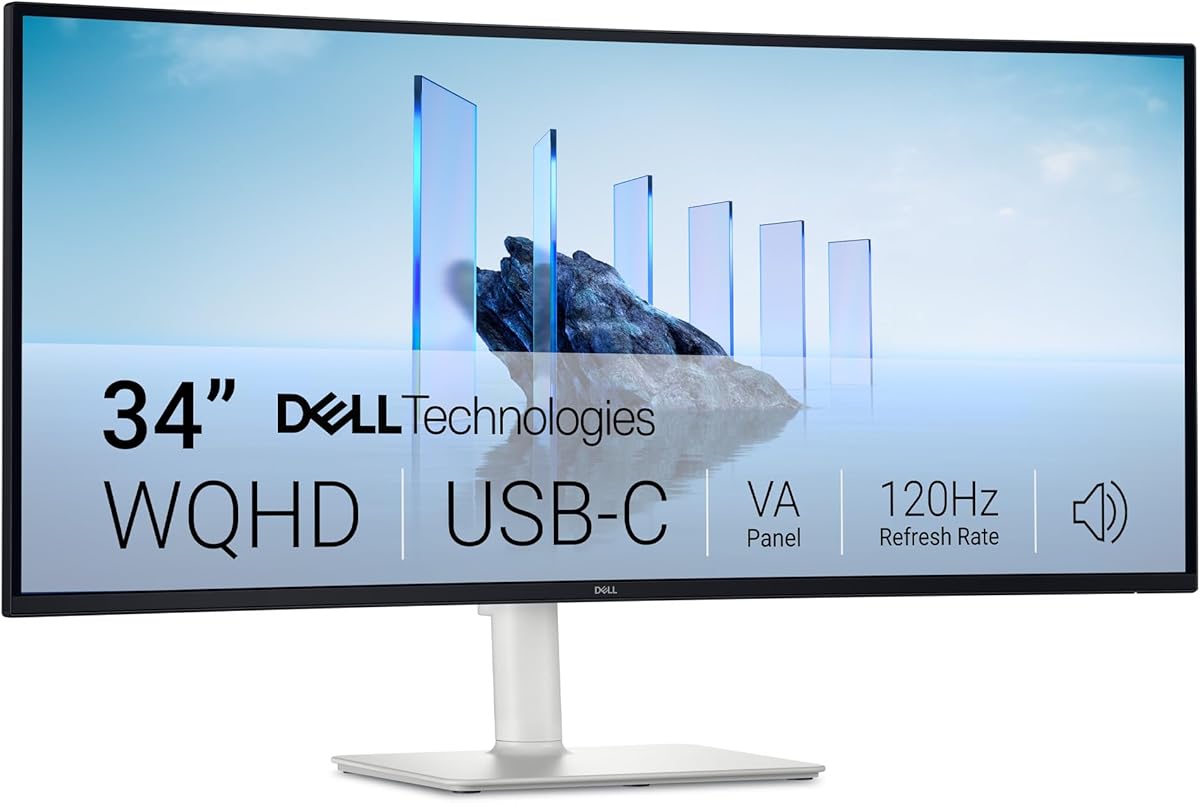
Dell focuses on user comfort with this monitor. The ComfortView Plus technology reduces harmful blue light emissions significantly without compromising color accuracy. This makes it suitable for long work sessions where eye strain is a concern.
We may earn a commission when you buy through this link, at no additional cost to you.
The VA panel offers a high contrast ratio for deep blacks and vibrant colors. AMD FreeSync Premium ensures smooth visuals by syncing the refresh rate with the GPU to prevent tearing during motion or gaming.
One drawback is the potential for color shift at extreme viewing angles typical of VA technology. The audio quality is enhanced compared to previous generations but may still need external speakers for critical listening.
Buyers seeking reliable eye care features should consider this model. It balances performance with comfort features effectively for daily use in home or office environments where visual health is a priority.
Certified technology reduces blue light exposure to protect eyes during extended daily usage periods.
Upgraded speakers deliver clearer audio with better bass response than standard monitor speakers.
We may earn a commission when you buy through this link, at no additional cost to you.
Samsung targets professionals with this model. The HDR10 support delivers a wide range of colors for vibrant media. The USB-C port offers 90W power delivery to charge high-performance laptops efficiently while maintaining a clean desk setup.
We may earn a commission when you buy through this link, at no additional cost to you.
Certified eye care features adjust brightness automatically to reduce strain. The borderless design helps focus attention on content. AMD FreeSync support ensures smoother performance when working with dynamic content or light gaming.
The price point is higher than average. The stand assembly might require more effort than plug-and-play alternatives. While excellent for work, the refresh rate is not ideal for competitive gaming scenarios.
It is best for creatives needing color accuracy and charging convenience. The combination of display quality and ergonomics supports productive workflows in professional settings where detail matters.
Near limitless hues ensure smooth gradients and accurate color representation for design tasks.
90W charging capability simplifies workstation setups by reducing cable clutter and power adapter needs.
We may earn a commission when you buy through this link, at no additional cost to you.
The IPS panel ensures consistent colors from almost any angle. This makes it excellent for collaborative work or wide seating arrangements. HDR10 support adds depth to visuals. USB-C connectivity handles display data and up to 96W laptop charging seamlessly.
We may earn a commission when you buy through this link, at no additional cost to you.
Built-in DepthSound speakers enhance audio quality for media playback. The Switch app allows screen splitting for efficient multitasking. Reader Mode optimizes text display for extended reading comfort during work hours.
IPS panels typically have less contrast than VA ones, leading to lower black levels. The stand design saves desk space but might not offer advanced ergonomic adjustments found on premium models.
This is a great choice for general office use and media consumption. Its versatility across inputs and display quality make it reliable for mixed daily tasks without needing external peripherals.
Split screen layouts help organize windows effectively to maximize screen real estate utilization.
Integrated speakers provide sufficient volume for calls and casual media without extra hardware.
We may earn a commission when you buy through this link, at no additional cost to you.
Gamers seeking speed will appreciate the 240Hz refresh rate. This high update rate minimizes motion blur for fluid gameplay. The 1ms response time ensures quick reaction times which are critical for competitive shooters and fast-paced titles.
We may earn a commission when you buy through this link, at no additional cost to you.
Blue-Light Shift technology helps maintain eye health during long sessions. Built-in speakers allow for immersive audio. The display offers true-to-life colors which enhance the gaming experience with accurate visuals and details.
Build quality is functional but lacks premium finishes. Connectivity is standard without high-speed hubs. The curve might not suit every user preference for desk setups but adds immersion for seated gaming positions.
It is ideal for budget gamers needing high refresh rates. Performance prioritization here makes it a strong contender for esports enthusiasts looking for smooth visuals without spending excessively on top-tier models.
240Hz refresh rate provides silky smooth motion for rapid action scenes and high frame rate gaming.
100% sRGB coverage ensures rich colors for visual fidelity across games and media.
We may earn a commission when you buy through this link, at no additional cost to you.
MSI balances work and gaming needs with this model. The 120Hz refresh rate and Adaptive-Sync provide smooth motion for both office and gaming applications. Eye-Q Check offers vision assessment tools to help optimize settings for health.
We may earn a commission when you buy through this link, at no additional cost to you.
Flicker Free technology reduces eye strain. The VESA mountable design supports wall mounting or arm installation for flexible desk setups. HDMI and DisplayPort ensure compatibility with standard graphics cards and systems.
The stand tilts but lacks height adjustment, which may affect ergonomics. Ports are standard but lack high-power charging. The contrast ratio is decent for general use but not exceptional for dark room viewing.
This unit suits users needing a balanced display. It is reliable for general computing tasks while providing enough refresh rate for casual gaming without the premium price tag.
Flicker Free and Low Blue Light tech reduce physical strain during prolonged daily usage sessions.
VESA compatibility allows flexible mounting solutions to save desk space and improve posture.
We may earn a commission when you buy through this link, at no additional cost to you.
LG brings its Switch app to streamline screen layouts. The 120Hz rate ensures smooth video playback. HDR10 support enhances contrast for media. The curved 1800R design immerses users in content naturally by following the line of sight.
We may earn a commission when you buy through this link, at no additional cost to you.
Reader Mode adjusts blue light for reading comfort. Black Stabilizer brightens dark scenes in games. The stand saves space with its square base. Connectivity is essential but not extensive for high-end setups.
The USB-C support varies and may not support charging on all units. Brightness is sufficient for rooms but not outdoors. The color range is standard for general viewing but not professional grade.
It fits home users prioritizing media consumption. The curve and refresh rate make it a solid choice for movies and gaming without requiring specialized equipment or extreme budgets.
Black Stabilizer helps visualize details in shadows for better gaming and movie experiences.
Switch app allows multiple screen splits for organized multitasking without cluttering desktop.
We may earn a commission when you buy through this link, at no additional cost to you.
Alienware delivers high-end features with this unit. The 180Hz refresh rate and HDR400 certification provide stunning visuals. VESA AdaptiveSync keeps frame rates smooth for responsive gaming. 95% DCI-P3 coverage ensures vibrant color accuracy.
We may earn a commission when you buy through this link, at no additional cost to you.
The 1500R curve enhances immersion for open world games. Hardware-based low blue light protects eyes without shifting colors. A dedicated console mode optimizes performance for home entertainment systems without needing complex settings.
The price reflects premium build quality but may be steep. The stand is limited in adjustments compared to ergonomic office models. Ports are standard but lack advanced hub features for peripherals.
It is best for gamers and enthusiasts wanting top performance. The combination of speed and visual quality justifies the investment for those seeking the best immersive experience available.
HDR400 certification provides deeper blacks and brighter highlights for realistic gaming visuals.
Dedicated console mode optimizes display settings for home gaming systems seamlessly.
We may earn a commission when you buy through this link, at no additional cost to you.
Samsung offers a strong value proposition here. The 120Hz refresh rate minimizes motion blur for smooth action. HDR10 optimizes contrast for vibrant colors. TUV certified Eye Saver Mode reduces strain for long work periods without losing clarity.
We may earn a commission when you buy through this link, at no additional cost to you.
Game Mode adjusts color for better scene clarity. HDMI and DP ports simplify setup. The 1800R curve provides a panoramic view. The design is sleek and fits most office environments effectively.
Brightness levels are standard and may struggle in very bright rooms. Ports lack advanced hub features for complex setups. However, the balance of features and build makes it a reliable daily driver.
It suits professionals needing reliable performance. The ergonomic benefits and refresh rate make it suitable for both creative work and casual gaming without excessive spending on premium options.
TUV certification ensures blue light reduction meets professional health standards for eye safety.
Game Mode instantly tweaks settings to make scenes clearer for better visibility and reaction times.
We may earn a commission when you buy through this link, at no additional cost to you.
Selecting the right monitor requires weighing several technical factors. This guide breaks down what matters most to help you find a model that fits your workflow.
Resolution determines image clarity. WQHD (3440×1440) is standard for these monitors. Panel type matters too. IPS offers better viewing angles and color accuracy, while VA provides higher contrast ratios for deeper blacks.
Choose IPS for color-critical work and VA for immersive dark scenes.
Refresh rate affects motion smoothness. For gaming, 144Hz or higher is ideal. For office work, 60Hz to 100Hz is often sufficient. Response time impacts ghosting; 1ms is excellent for fast action.
Prioritize higher refresh rates if gaming is a primary use case.
Check available ports. HDMI and DisplayPort are standard. USB-C with power delivery simplifies laptop setups. Ensure the monitor supports the bandwidth needed for your resolution and refresh rate.
Look for USB-C with charging if you want a single-cable connection.
Comfort is key for long sessions. Height, tilt, and swivel adjustments help you find the right position. Fixed stands are cheaper but less flexible. VESA mounting allows for arms.
Ensure the stand allows you to view at eye level.
Color coverage like sRGB or DCI-P3 matters for creative tasks. HDR support adds depth to media content but requires sufficient brightness. Look for certifications like TUV for eye comfort.
Opt for high color coverage if you work with media or design.
Curved screens reduce edge distortion. Common curves range from 1500R to 3800R. Steeper curves offer more immersion for sitting close. Flatter curves are versatile for multiple viewing angles.
Choose a steeper curve for focused gaming or close-up work.
Prices vary based on features. Entry-level models offer basic refresh rates. Premium models bring high speeds and color fidelity. Balance what you need against what you are willing to spend.
Focus on your primary use case to find the best value.
Built-in speakers save space. Software for screen splitting can boost productivity. Blue light filters reduce strain. Consider if these extras justify a higher price tag for your situation.
Review extra features for long-term utility beyond the screen itself.
Connect all necessary cables securely. Use HDMI or DisplayPort for the best resolution and refresh rate. For USB-C, ensure your device supports video output to utilize the single cable connection effectively.
Adjust brightness and contrast settings based on room lighting. Use eye care modes during night work. Calibrate colors if you work with media to maintain accuracy over time.
Clean the screen gently with a microfiber cloth. Avoid harsh chemicals that may damage the coating. Dust regularly to maintain visibility. Keep the stand stable to prevent accidental tipping or damage.
Yes, curved monitors reduce eye strain and improve peripheral visibility. They wrap around the field of vision, which helps keep focus on central tasks. This is especially useful for ultrawide screens where flat edges distort images.
Many models support USB-C with DisplayPort Alt Mode. This allows video and data transfer over one cable. Check power delivery wattage to see if it can charge your laptop simultaneously while connecting.
For casual gaming, 100Hz to 144Hz is sufficient. For competitive titles, aim for 165Hz or higher. Higher rates provide smoother motion and less blur, which is crucial for fast-paced action games.
Most modern monitors have software tools for screen splitting. You can divide the display into multiple zones. This allows you to run multiple apps side-by-side without switching windows constantly.
Use a dry microfiber cloth to wipe dust. For smudges, dampen the cloth slightly with water. Avoid spraying liquid directly on the screen. Never use household cleaners that contain alcohol or ammonia.
HDR enhances contrast and color for media. For general office work, it is less critical. However, having HDR support ensures future content looks vibrant. It adds value if you watch movies or play games regularly.
Sit about two to three feet away. This prevents neck strain from scanning the wide screen. The curve helps maintain equal distance to the edges, reducing the need for excessive head movement.
Many models support VESA mount standards. Check the specific dimensions in the manual. Wall mounting saves desk space. Ensure you use a sturdy arm or bracket capable of holding the weight securely.
Our review highlights ten top options catering to different needs. The LG 34WR55QK-B offers a balanced experience for professionals. Sceptre provides budget-friendly high speed for gamers. Alienware stands out for premium visual quality.
Prioritize your main tasks. If productivity is key, focus on ergonomics and connectivity. For gaming, refresh rate and response time are paramount. Always consider color accuracy if you work with visuals.
Prices fluctuate frequently. Verify current availability and deals before purchasing. These models represent the best value available. Select the one that aligns with your workflow goals for the best results.