
Canon PIXMA TR4720
3.9Editor score
Compact home design
Built-in fax support
Alexa smart reorders
Finding the right All in One Printer for MacBook Air requires careful consideration of compatibility and performance. Modern users need devices that support AirPrint and deliver crisp documents without compromising on speed or quality.
We evaluated ten top-rated models based on connectivity features, ink efficiency, and design suitability for home offices. Each product was analyzed for its ability to integrate smoothly with macOS ecosystems and daily workflows.
This guide reveals our top picks with detailed insights into their strengths and weaknesses. Note that product availability and pricing can change frequently so check current listings before making your final purchase decision today.
3.9Editor score
3.9Editor score
4.0Editor score
As an Amazon Associate we earn from qualifying purchases.
This side-by-side comparison highlights key specifications and features across all ten models to help you choose the best fit for your specific needs.



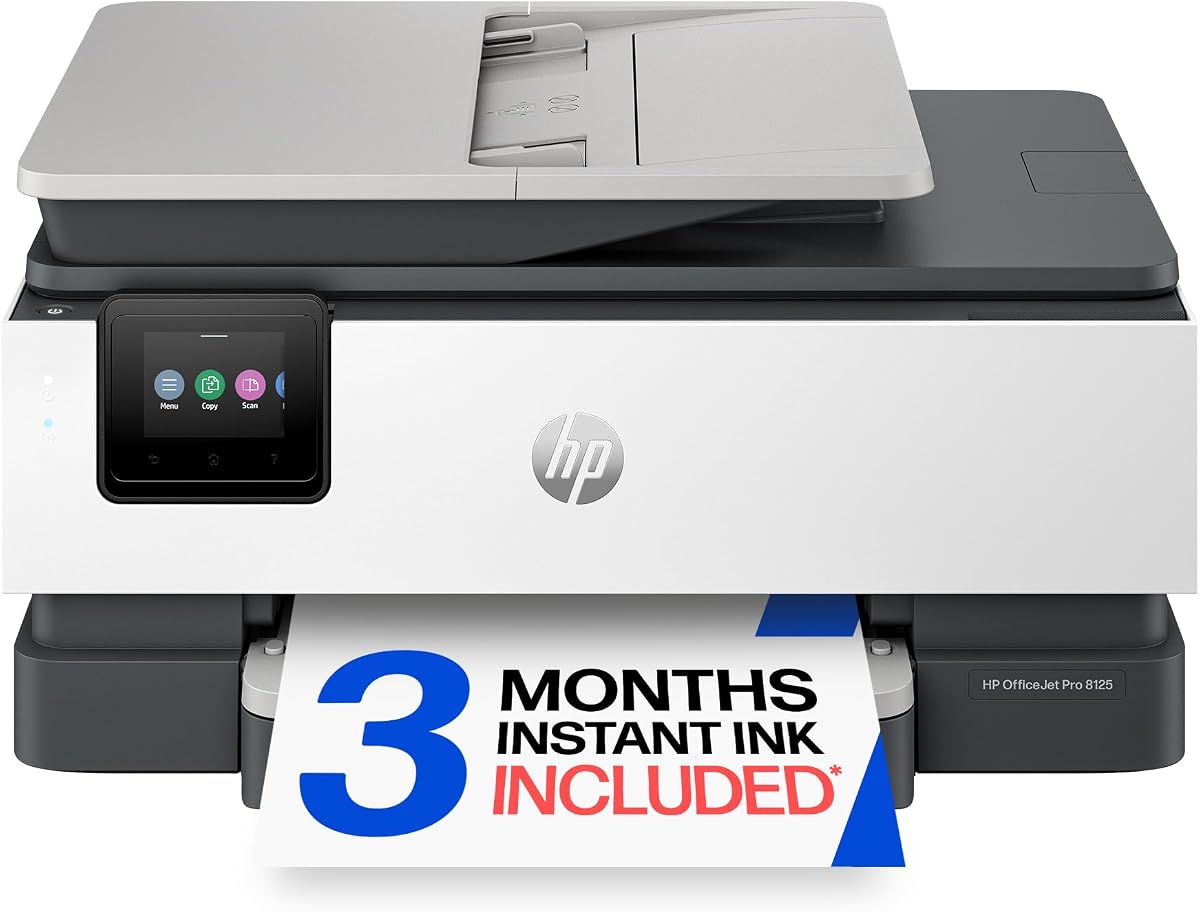
The HP OfficeJet Pro 8125 stands out as a robust all-in-one solution for MacBook Air users needing professional quality. It holds a solid rating and delivers sharp color documents with speeds reaching twenty pages per minute in black.
We may earn a commission when you buy through this link, at no additional cost to you.
Its standout features include HP AI that optimizes print formatting to remove unwanted content automatically. The dual-band Wi-Fi ensures reliable connectivity while the large touchscreen simplifies navigation without needing a computer connection.
However, users must use original HP cartridges as the system blocks non-HP chips. The Instant Ink trial ends after three months which may increase long term costs for some households despite the convenience it offers.
This printer is ideal for home offices producing frequent business documents or presentations. Its balance of speed connectivity and smart features makes it our top recommendation for seamless MacBook Air integration.
HP AI technology cleans up web pages and emails to ensure prints look exactly as you want them.
Dual-band Wi-Fi automatically resolves connection issues to keep printing smooth and uninterrupted.
We may earn a commission when you buy through this link, at no additional cost to you.
The Epson EcoTank ET-2903 offers incredible value with enough ink to last up to three years right out of the box. It receives high marks for its refillable tank system and excellent photographic print quality.
We may earn a commission when you buy through this link, at no additional cost to you.
Its Supertank design eliminates cartridge waste and saves money over time. The printer supports AirPrint and Mopria Scan ensuring easy wireless access from any MacBook Air device on your network.
While it prints slightly slower than some competitors the lack of warmup time helps efficiency. The higher initial price pays off quickly for heavy users who print frequently at home or small offices.
Choose this model if you want reliable long-term performance and minimal maintenance. It is perfect for families or professionals who need consistent quality without constant ink replacements.
Each replacement ink bottle set equals about eighty standard cartridges reducing ongoing supply costs.
High resolution prints deliver stunning photos and sharp text on various media types.
We may earn a commission when you buy through this link, at no additional cost to you.
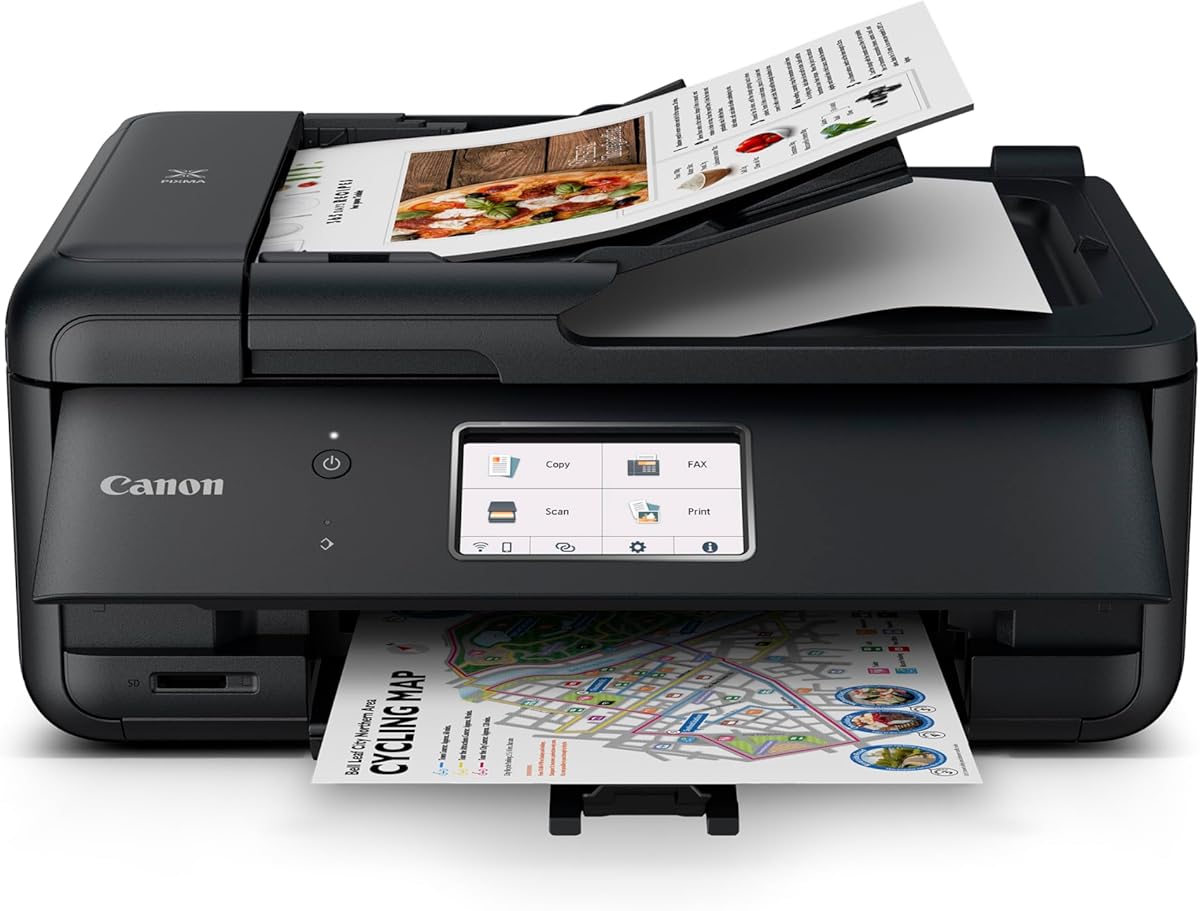
The Canon PIXMA TR4720 is an excellent entry-level option for those needing basic printing scanning and faxing. It offers strong value with Alexa integration for smart reorder notifications and reliable wireless connectivity.
We may earn a commission when you buy through this link, at no additional cost to you.
Its compact design fits easily on small desks or shelves making it ideal for tight spaces. The automatic document feeder handles multi-page scanning efficiently while the ten-year warranty provides peace of mind.
Print speeds are slower than premium models but sufficient for occasional home use. The main trade-off is limited paper capacity which may require frequent refills for busy workflows.
This printer is best for students or light home users prioritizing cost over speed. Its smart features ensure you never run out of ink unexpectedly thanks to voice-activated reorder support.
Alexa automatically places orders when ink runs low requiring no manual intervention.
Small footprint allows placement anywhere in a home office without clutter.
We may earn a commission when you buy through this link, at no additional cost to you.
The Canon PIXMA TR7120 delivers crisp vibrant prints thanks to its hybrid ink system. Users appreciate the OLED display for easy navigation and the compact design that blends well with modern decor.
We may earn a commission when you buy through this link, at no additional cost to you.
It handles documents efficiently with its automatic document feeder and duplex printing options. Wireless connectivity is stable across both bands ensuring reliable access from MacBook Air devices throughout your home.
This model is best suited for users who need quality photos and documents without fax functions. The small paper tray is a minor inconvenience for heavy printers but acceptable for typical home use.
For hybrid workers needing a stylish yet functional printer this unit is a great pick. It balances performance and aesthetics to enhance any workspace without dominating the available desk space.
Delivers sharp text and vivid colors for a professional finish on every print.
Monochrome screen makes monitoring ink levels and status quick and simple.
We may earn a commission when you buy through this link, at no additional cost to you.
The Canon PIXMA TS6520 is designed for users who need a compact printer without sacrificing quality. It uses a hybrid ink system for vibrant colors and includes an intuitive OLED display for control.
We may earn a commission when you buy through this link, at no additional cost to you.
Its integrated scanner bed handles single-page documents well though it lacks an auto feeder. This makes it suitable for light users who print photos and occasional reports from their MacBook Air.
Dual-band Wi-Fi ensures stable connections and mobile printing is supported through popular apps. The main limitation is the lack of automation which slows down multi-page scanning tasks significantly.
Choose this model if you prioritize style and space-saving design over high volume. It is an ideal companion for creative professionals or students needing reliable output in small environments.
Flatbed scanner handles delicate documents and photos without feeding jams.
Supports AirPrint and Mopria for easy printing from any mobile device.
We may earn a commission when you buy through this link, at no additional cost to you.
The HP Envy 6155 is perfect for homes producing colorful documents and borderless photos. It features True-to-Screen tech and HP AI to ensure prints match what you see on your MacBook Air.
We may earn a commission when you buy through this link, at no additional cost to you.
Users praise the intuitive touchscreen and reliable dual-band Wi-Fi connection. The sustainable design uses recycled plastic which appeals to environmentally conscious buyers seeking practical home office solutions.
Print speeds are moderate at ten ppm for black documents. While adequate for casual use it may feel slow for bulk printing jobs requiring significant time investment.
This printer is recommended for creative families or small home offices. Its photo quality and smart features make it a strong choice for those who value visual fidelity and ease of use.
HP P3 technology ensures photos look vibrant and accurate across devices.
At least sixty percent recycled plastic reduces environmental footprint significantly.
We may earn a commission when you buy through this link, at no additional cost to you.
The Brother Work Smart 1360 delivers fast speeds and versatile connectivity for everyday printing. It supports direct cloud connections and offers a compact design that fits easily in home setups.
We may earn a commission when you buy through this link, at no additional cost to you.
Users enjoy the Brother Mobile Connect app for easy device management from smartphones. The twenty-sheet ADF handles simple multi-page tasks while the hundred-fifty sheet tray reduces refill frequency.
While black printing is fast color output is slower which may impact creative workflows. Still it provides great value for those needing quick document handling without complex setup.
This model is best for hybrid workers needing reliable daily output. Its cloud integration ensures you can print directly from Google Drive or Dropbox without routing through a computer.
Print and scan directly to popular apps like Dropbox and OneDrive easily.
Brother Mobile Connect app simplifies ink monitoring and device settings.
We may earn a commission when you buy through this link, at no additional cost to you.
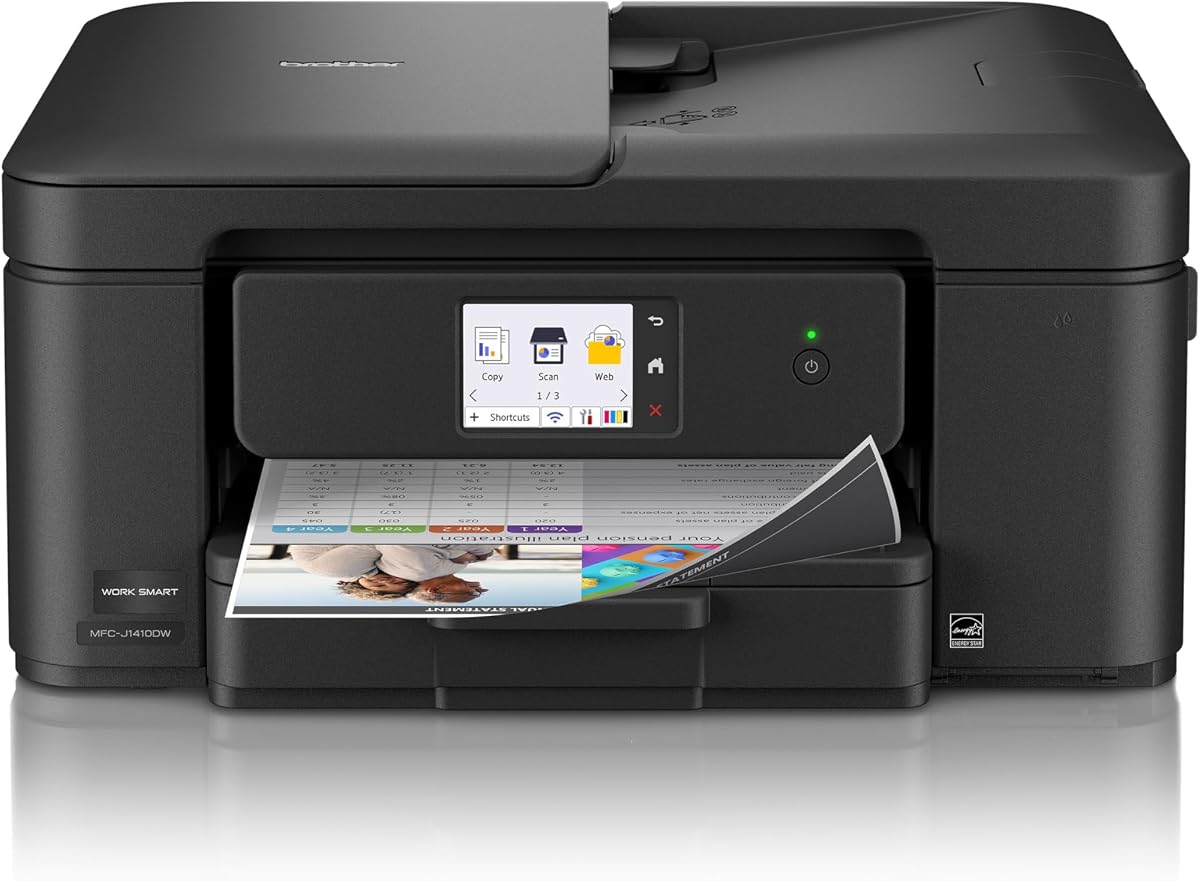
The Brother Work Smart 1410 offers a clear touchscreen and fast speeds for small offices. It integrates seamlessly with cloud apps and supports automatic duplex printing for efficient workflows.
We may earn a commission when you buy through this link, at no additional cost to you.
Users appreciate the ease of setup and reliable connectivity for home or office use. The twenty-seven-inch display simplifies navigation while the app provides easy ink usage monitoring.
Only using genuine Brother ink ensures optimal performance without voiding warranties. The small ADF is acceptable for occasional scanning but limits high-volume document processing tasks.
This printer is ideal for small businesses needing a multifunction workhorse. Its balance of speed usability and cloud connectivity makes it a practical choice for busy professionals.
Large display makes navigation and settings adjustment intuitive and fast.
Connect to cloud services for direct printing without computer intermediaries.
We may earn a commission when you buy through this link, at no additional cost to you.
The HP OfficeJet 3830 provides a simple and reliable experience for everyday printing tasks. Its strong AirPrint support ensures seamless integration with MacBook Air devices for easy document printing.
We may earn a commission when you buy through this link, at no additional cost to you.
Alexa voice control allows hands-free setup and printing commands which is great for smart homes. The quiet mode helps minimize noise during early morning or late night work sessions.
While basic in features it covers all essentials like scanning faxing and wireless copying. The Instant Ink compatibility keeps costs predictable for regular users needing steady supply management.
This model is perfect for users wanting straightforward printing without extra bells and whistles. Its reliability and smart home integration make it a solid choice for general household needs.
Alexa enables hands-free discovery and printing for enhanced convenience.
Minimize noise during operation to maintain a peaceful workspace.
We may earn a commission when you buy through this link, at no additional cost to you.
The Canon PIXMA TR8620a is a feature-rich printer offering high capacity and versatile connectivity. With dual trays and a one thousand page duty cycle it handles busy home office needs well.
We may earn a commission when you buy through this link, at no additional cost to you.
Alexa voice commands make printing and smart reorder notifications effortless to manage. The Micro SD slot allows direct printing from memory cards without needing a computer connection at all.
Its larger footprint may be an issue for small desks but the high capacity justifies it. Setup can be complex but once running it delivers reliable performance for diverse document types.
This printer is recommended for power users needing flexibility and capacity. Its voice features and card slots make it unique for those prioritizing convenience and high-volume processing.
One thousand page monthly cycle ensures reliable performance for frequent users.
Micro SD slot enables direct photo printing without computer dependency.
We may earn a commission when you buy through this link, at no additional cost to you.
Selecting the right printer for your MacBook Air involves evaluating key factors like connectivity, speed, and ink efficiency to ensure seamless workflow integration.
Look for printers with AirPrint support and dual-band Wi-Fi to ensure smooth connection with your MacBook Air. Reliable wireless features reduce dependency on cables and allow printing from any room.
Prioritize models with auto connection resolution to prevent interruptions during important work sessions.
Consider how fast the printer produces documents per minute especially if you print business reports or photos regularly. Speed affects workflow efficiency while quality impacts the professional look of your output.
Choose a model that balances reasonable speed with sharp text and vibrant color resolution for your needs.
Evaluate whether the printer uses cartridges or refillable tanks to understand long term ink expenses. Subscriptions like Instant Ink may save money but add recurring costs that affect your budget.
Opt for refillable tanks if you print frequently to reduce waste and overall operating costs significantly.
Measure your available desk space before buying to ensure the printer fits comfortably without cluttering your workspace. Compact designs are ideal for home offices or small studios where room is limited.
A sleek design that matches your MacBook Air aesthetic can enhance your overall workspace organization.
Decide if you need extra functions like faxing auto document feeders or voice control for smart home integration. These features add convenience but may increase the purchase price and complexity of use.
Select only the features you will actually use to avoid unnecessary costs and operational confusion.
Check if the manufacturer provides regular drivers and software updates for macOS to prevent compatibility issues. Strong customer support and warranty terms protect your investment and reduce downtime.
Ensure the printer supports third party apps you rely on for cloud printing and mobile scanning.
Choose printers with built-in security features to protect your data from unauthorized access or cyber threats. This is crucial for handling sensitive business documents on shared home networks.
Look for brands that offer security suites to secure your network and protect sensitive print jobs.
Consider models with recycled plastic content or energy-efficient modes to reduce environmental impact during daily use. Many brands now highlight green certifications which reflect better manufacturing practices.
Choosing eco-friendly options helps you save energy while supporting sustainable product development initiatives.
Connect the printer to your home Wi-Fi network and enable AirPrint in macOS settings for seamless wireless printing. Ensure the printer firmware is updated to prevent compatibility issues with your MacBook Air.
Regularly clean the printhead and exterior to prevent paper jams and maintain high print quality over time. Use a soft lint-free cloth and manufacturer-approved cleaning solutions to avoid damage.
Monitor ink levels through the mobile app and reorder supplies before running out to avoid workflow interruptions. Store spare cartridges in a cool dry place to preserve ink quality.
Most models support AirPrint allowing direct printing from macOS without installing drivers. However installing the manufacturer app may offer advanced features like scanning and ink monitoring for better control.
Some brands block non-genuine chips so always check the manual for cartridge restrictions. Using genuine cartridges ensures optimal performance and protects your warranty against potential damage.
Models with refillable tanks like the Epson EcoTank are best for high-volume needs. They reduce long-term costs and provide enough ink to last years without frequent replacements.
Many models include ENERGY STAR certifications and sleep modes to minimize power consumption. Check specifications for standby power usage to ensure it fits your efficiency goals.
Use the built-in Image Capture app or the manufacturer's mobile app to scan wirelessly. Ensure both devices are on the same network for smooth transmission to your computer.
Yes all models support AirPrint or mobile apps for direct iPhone photo printing. Use borderless options for best results and ensure your paper tray supports photo sizes.
Restart both the printer and your MacBook Air then reconnect to the Wi-Fi network. Resetting network settings or reinstalling the driver often resolves persistent connectivity issues quickly.
Place documents face up in the feeder tray and select scan via the printer app. Configure output format and destination on your MacBook Air to save scans as PDFs or images.
We highlighted ten diverse models ranging from budget-friendly options to premium all-in-one solutions. Each pick offers unique strengths tailored to different needs ensuring you find the right fit.
Prioritize wireless reliability ink efficiency and physical size when deciding which printer to buy. Balancing these factors will help you maintain a productive and organized workspace.
Remember that prices and availability change frequently so check current listings before completing your purchase. This ensures you get the best deal and latest features available today.